Getting Started
Accessing the Game
Galaxy runs in your web browser. No installation is required.
- Open your browser and navigate to the game URL provided by your server admin (default:
https://localhost:30000) - Accept the self-signed certificate if prompted
Supported browsers: Chrome, Firefox, Edge, Safari (any modern browser with WebSocket and WebGL support).
Creating an Account
- On the login screen, click Register
- Enter a username and password
- Click Register to create your account
- You will be automatically logged in
First Launch
After logging in, you spawn in Low Earth Orbit (LEO) at approximately 400 km altitude. You’ll see:
- Earth filling much of your view
- The HUD with body markers, status information, and controls
- Your ship in third-person view, orbiting Earth
Orientation
- W/A/S/D — Pitch and yaw your ship
- Q/E — Roll left and right
- +/- — Increase or decrease thrust (10% per press)
- H — Hold your current attitude (stops rotation)
- M — Toggle map view for a system-wide perspective
- ? — Show the keyboard controls reference
What to Try First
- Press ? to open the controls reference and familiarize yourself with the keybindings
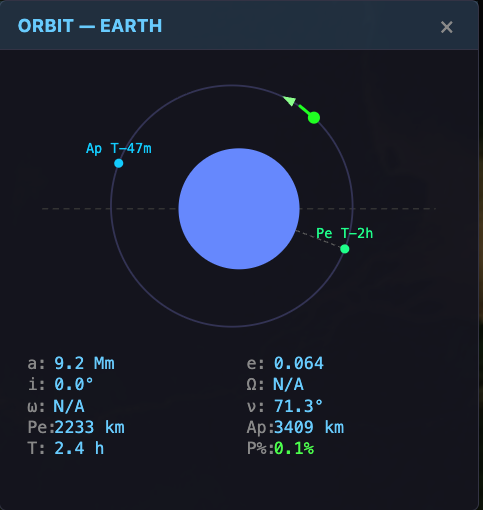
- Press I to open the Orbit Diagram window — watch how your orbit changes as you thrust
- Press N to show your orbital path with periapsis (Pe) and apoapsis (Ap) markers
- Try pressing P for prograde hold, then tap + a few times to raise your orbit
- Press M to switch to the map view and see your position in the solar system
Take your time. Galaxy uses real orbital mechanics in a full-scale solar system. Brachistochrone (continuous-thrust) transfers keep travel times manageable — the Moon is about 3 hours away, Mars about 2 days. Set up automation rules to handle brachistochrone guidance and rendezvous while you’re away, and use time acceleration for long transits. You can also press R to spawn directly at different bodies throughout the system.
Connection Status
The status bar at the bottom-left shows your connection health:
- Green dot — Connected
- Yellow dot — Reconnecting
- Red dot — Disconnected
Latency is displayed in milliseconds and color-coded: green (<100ms), yellow (100–300ms), red (>300ms).
Getting Help
- Press ? at any time to view keyboard controls
- Use the Help menu in the menu bar to access the About window (shows service versions) and the controls reference
- Press Escape to close any open dialog