1.2 Installation
Updated: v2026.02.02

Contents
Updated: v2026.02.02
1.2.1 System Requirements
Updated: v2026.01.30
Aurora C# is not a graphically demanding game, but its simulation engine can be CPU-intensive during large game processing. The following are the practical requirements:
Minimum Requirements:
- Operating System: Windows only (Windows 7 or later; 64-bit recommended) \hyperlink{ref-1.2-inst-1}{[1]}
- Runtime: .NET Framework 4.0 or later \hyperlink{ref-1.2-inst-8}{[8]}; Windows 10+ includes compatible versions
- CPU: Any modern processor; faster single-thread performance helps with turn processing (unverified — #704 – no official CPU requirements published)
- RAM: 4 GB minimum; 8 GB recommended for large games with many NPRs (unverified — #704 – no official RAM requirements published)
- Disk Space: Approximately 130 MB for the base installation \hyperlink{ref-1.2-inst-2}{[2]}; save databases can grow significantly in long games due to accumulated game events and entity tracking \hyperlink{ref-1.2-inst-6}{[6]}
- Display: Minimum 1440x900 required; 1920x1080 or higher recommended \hyperlink{ref-1.2-inst-3}{[3]}
Performance Notes:
- Turn processing time scales with the number of active ships, populations, and NPRs. Games with many active NPRs will take noticeably longer to process each increment, primarily because NPR battles trigger extensive combat calculations \hyperlink{ref-1.2-inst-7}{[7]}.
- CPU-bound simulation calculations are the primary bottleneck for very large games \hyperlink{ref-1.2-inst-7}{[7]}. Database bloat from accumulated game events (especially combat logs) is a secondary performance concern that can be mitigated with the SQLite VACUUM command \hyperlink{ref-1.2-inst-6}{[6]}.
- The system map is rendered in software; extremely large fleets in a single system can slow map rendering. (unverified — #704)
Non-Windows Users: Aurora C# is a Windows application built on .NET Framework and Windows Forms. Linux and macOS users have reported success running Aurora through compatibility layers, though this is not officially supported: (unverified — #704 – Wine/Proton/Whisky compatibility details are community-reported and vary by configuration)
- Linux: Wine or Proton. Common issues include font rendering and occasional UI glitches.
- macOS: Whisky (a modern Wine wrapper for macOS) is the most commonly recommended approach. Standard Wine also works but requires more manual configuration.
Tip: For Linux/Wine or macOS/Whisky setup guidance, search the Aurora Forums (aurora2.pentarch.org) for “Wine”, “Linux”, or “Mac” in the C# Aurora section. Community members have documented working configurations including Wine version requirements and winetricks packages needed for .NET Framework support.
1.2.2 Downloading Aurora
Updated: v2026.01.30
Aurora C# is distributed for free through the official Aurora forums.
Official Download Location:
- Visit the Aurora Forums at https://aurora2.pentarch.org/
- Navigate to the C# Aurora > Installation board, or go directly to: https://aurora2.pentarch.org/index.php?board=276.0
- Look for the pinned download thread, which contains the base version and all subsequent patches
- The game is distributed as RAR (.rar) archives. Windows 11 can extract RAR files natively; on older versions of Windows, use 7-Zip or WinRAR.
Version Numbering: Aurora uses a version numbering scheme (e.g., 2.7.1). Steve Walmsley posts changelogs with each release in the C# Aurora Changes List section. There is no auto-update mechanism — you must manually download new versions.
Save Game Compatibility: Minor version updates (e.g., 2.7.0 to 2.7.1) generally allow importing saves from the previous minor version. Major version updates (e.g., 1.x to 2.x) typically require starting a new game. Always check the changelog for version-specific compatibility notes. (unverified — #704 – save compatibility rules are community-observed patterns, not officially documented)
Patching Process: Aurora uses an incremental patching model. The base installation package is v1.13.0 \hyperlink{ref-1.2-inst-4}{[4]}, with patches applied in sequence. Alternatively, a pre-patched full installation package (currently v2.7.1) is available that includes all patches applied \hyperlink{ref-1.2-inst-2}{[2]}. Each patch only contains what changed — typically a new Aurora.exe and/or a fresh AuroraDB.db — and is applied on top of the previous version.
Warning — Database Overwrites: Patches that include an AuroraDB.db file will overwrite your existing database. Since the database IS your save game, always back up your AuroraDB.db before applying any patch. After patching, you can restore your backed-up database to continue an existing game (unless the changelog states the new database is required for compatibility).
Important: Always download from the official forum thread. There is no other official distribution channel (no Steam, no third-party download sites). Versions found elsewhere may be outdated or modified.
1.2.3 Setup and Configuration
Updated: v2026.01.30
Aurora does not use an installer. Setup consists of extracting files and running the executable.
Warning: Aurora historically requires US/UK number formatting (period as decimal separator, comma as thousands separator) \hyperlink{ref-1.2-inst-5}{[5]}. This requirement may have been relaxed in v2.7.0+, but if you encounter calculation errors or unexpected behavior and your system locale uses a different convention (e.g., comma as decimal separator, as is common in many European countries), change your Windows regional format settings to English (United States) or English (United Kingdom). (unverified — #704 – whether the locale fix in v2.7.0 fully resolves all formatting issues is unconfirmed)
Installation Steps:
-
Extract the RAR archive: Extract the downloaded
.rarfile to a location of your choice. AvoidProgram Filesor other protected directories, as Aurora needs write access to its own folder for the database files. A location likeC:\Games\AuroraorC:\Auroraworks well. -
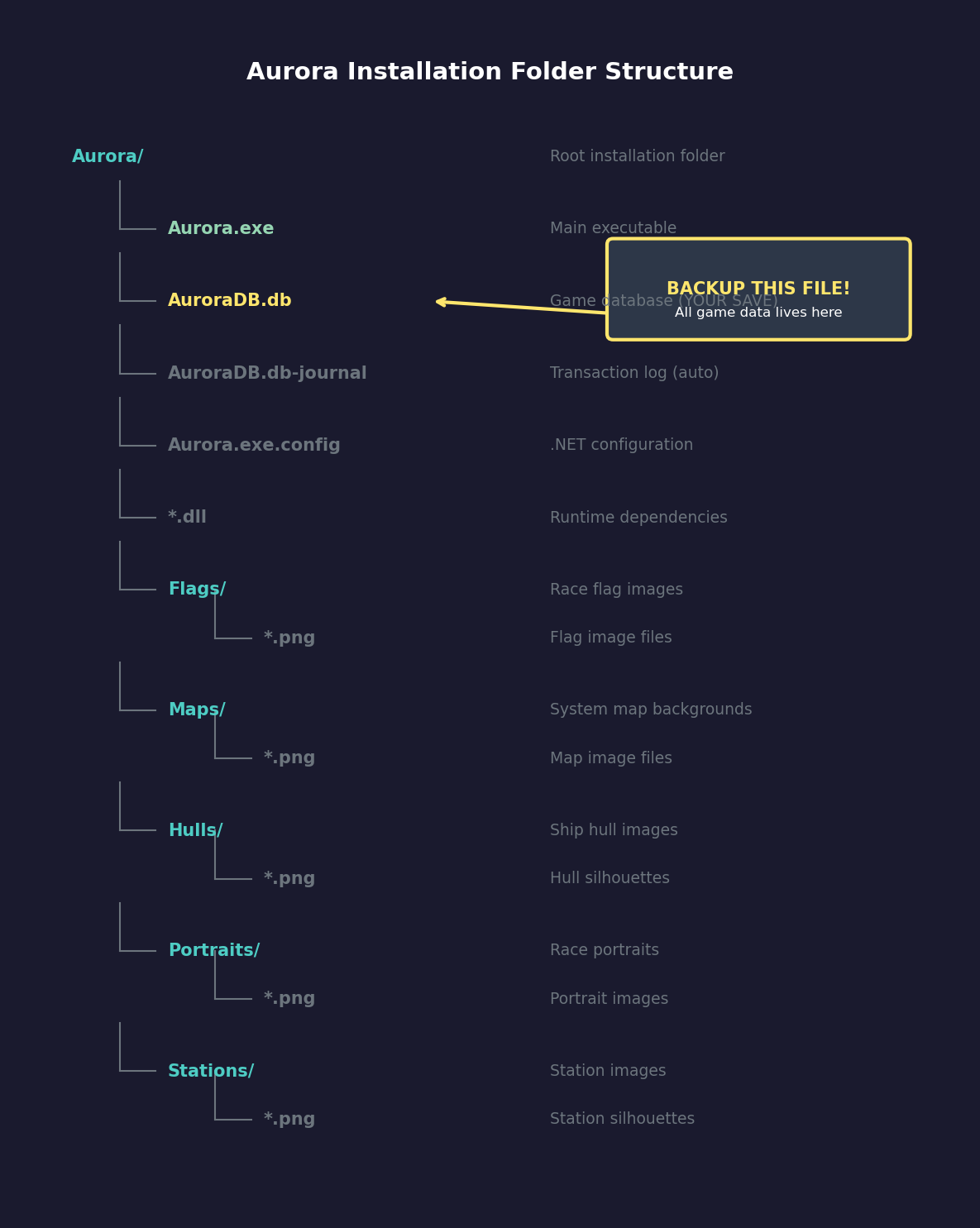
Verify Contents: After extraction, your Aurora folder should contain:
Aurora.exe— The main executableAuroraDB.db— The SQLite database (this is your save file)- Various
.dllfiles — Runtime dependencies Flagsfolder — Race flag imagesHullsfolder — Ship hull graphicsMapsfolder — Star system map images (optional)Portraitsfolder — Commander portrait imagesStationsfolder — Station graphics
- First Run: Simply double-click
Aurora.exeto launch. Aurora will open directly into a default example game — this is normal. To start your own game, click the gear icon in the top right of the game window to open the settings panel, then click New Game (see Section 2.1 New Game Options).
Warning: Aurora does not autosave. Build the habit of saving frequently — there is no automatic checkpoint system. See the Backup Strategy below for best practices.
Database Location: The AuroraDB.db file in the Aurora folder is your game’s database. This single file contains all game state — stars, planets, ships, races, everything. This is both your save file and the active game state.
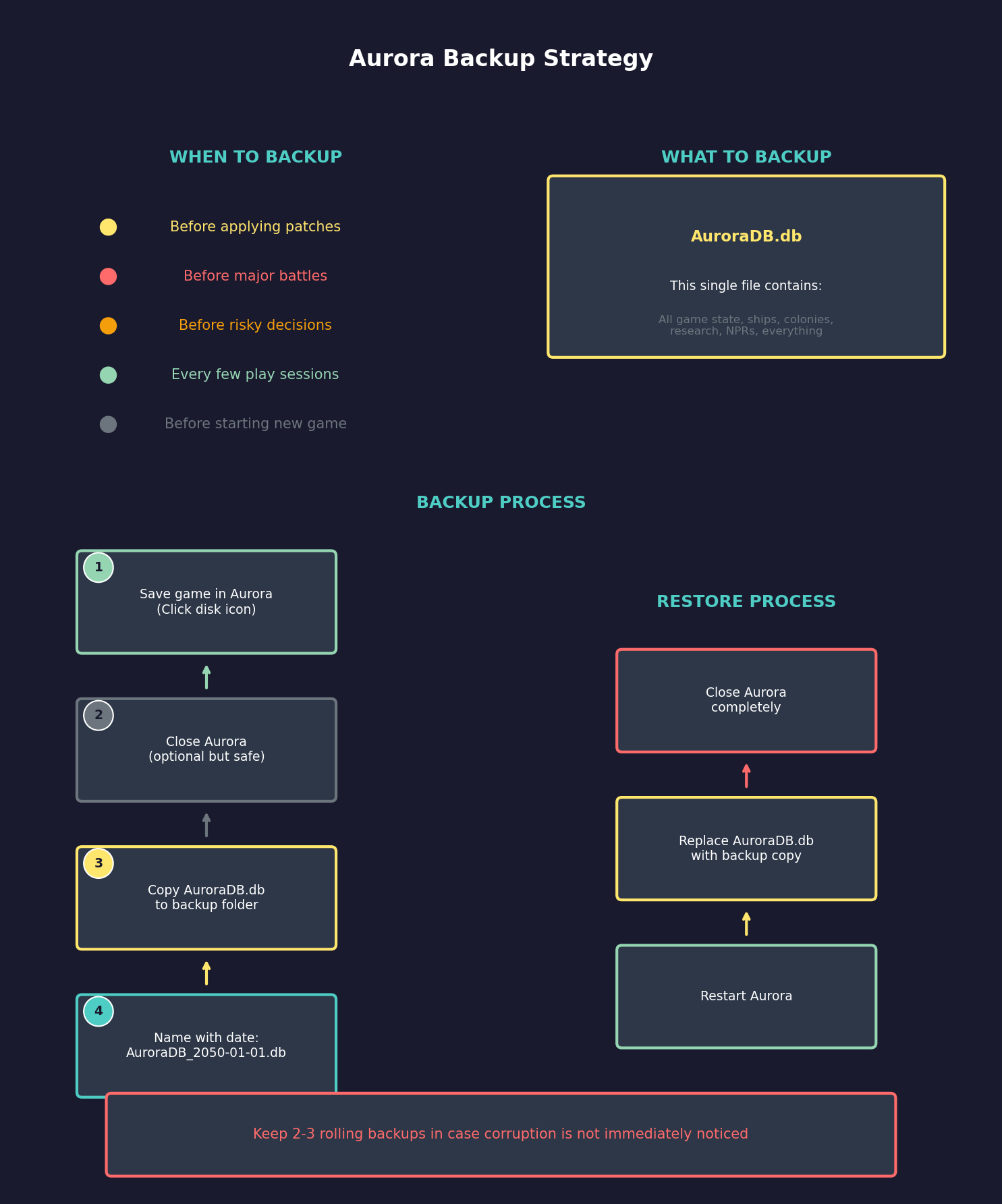
Backup Strategy: Since all game data lives in AuroraDB.db, backing up your game is as simple as copying this file. It is strongly recommended to make regular backups, especially before updating to a new version. A good practice:
- Copy
AuroraDB.dbto a backup location before each play session - Name backups with the in-game date (e.g.,
AuroraDB_2050-01-01.db) - Keep at least 2-3 rolling backups in case corruption is not immediately noticed
Applying a Patch: When a new patch is released:
- Back up your current
AuroraDB.db(this is your save game — patches may overwrite it) - Extract the patch RAR into your existing Aurora folder, overwriting files when prompted
- If the patch included a new
AuroraDB.dband you want to continue your existing game, copy your backed-up database back into the folder - Check Steve’s changelog to confirm whether the new database is required for compatibility (in which case you must start fresh or use the provided database)
Troubleshooting Common Issues:
- “Application failed to start”: Ensure .NET Framework 4.0 or later is installed \hyperlink{ref-1.2-inst-8}{[8]}. Windows 10 and later include compatible versions. Download from Microsoft if needed on older systems.
- “Database is locked”: Only one instance of Aurora can access the database at a time. Close any other running instances.
- UI elements cut off or too small: Aurora scales its viewport based on Windows display scaling. Recommended settings by resolution: 100% for 1080p, 150% for 2K (1440p), 200% for 4K. If elements are still cut off, try the application’s DPI compatibility settings (right-click Aurora.exe > Properties > Compatibility > Change high DPI settings). (unverified — #704 – scaling behavior at non-standard percentages may vary)
- Incorrect values or game-breaking calculation errors: Ensure your Windows regional format is set to English (United States) or English (United Kingdom). Aurora requires a period (.) as the decimal separator. Other locale settings cause the game to misparse numerical values.
- Slow startup: The initial load reads the entire database. Large games with extensive history will take longer to load.
Related Sections
- Section 2.1 New Game Options – Configuring your first game
- Section 3.1 Main Window – Overview of the game interface
- Appendix B: Glossary – Key terms and definitions
References
\hypertarget{ref-1.2-inst-1}{[1]}. 7w1 Tutorial, “Aurora 4x is only supported on Windows.” 7w1.github.io
\hypertarget{ref-1.2-inst-2}{[2]}. Aurora Forums, “C# Full Installation v1.00 (updated to 2.7.1)” — 130MB pre-installed 32-bit version. aurora2.pentarch.org
\hypertarget{ref-1.2-inst-3}{[3]}. 7w1 Tutorial Part 0.5, “Aurora 4X C# requires a minimum of 1440x900, though at least 1920x1080 is recommended.” 7w1.github.io
\hypertarget{ref-1.2-inst-4}{[4]}. 7w1 Tutorial Part 0, “The download for Aurora 4X contains version 1.13.0.” 7w1.github.io
\hypertarget{ref-1.2-inst-5}{[5]}. 7w1 Tutorial Part 0.5, “The decimal separator must be set to a period (.) rather than a comma (,). Using a comma will cause ‘a multitude of issues.’” 7w1.github.io
\hypertarget{ref-1.2-inst-6}{[6]}. Aurora Forums, “Slow down reasons and possible fixes — An Aurora C# guide” — Database bloat from accumulated events; VACUUM command to reclaim space; limit event days and max events. aurora2.pentarch.org
\hypertarget{ref-1.2-inst-7}{[7]}. Aurora Forums, “Slow down reasons and possible fixes” — Primary cause is CPU-bound battle calculations; NPR battles cause turns from minutes to over an hour; civilian ships and universe expansion are secondary factors. aurora2.pentarch.org
\hypertarget{ref-1.2-inst-8}{[8]}. Aurora.exe.config — <supportedRuntime version="v4.0" sku=".NETFramework,Version=v4.0" /> confirms .NET Framework 4.0 target.