9.4 Fleet Organization
Updated: v2026.02.15

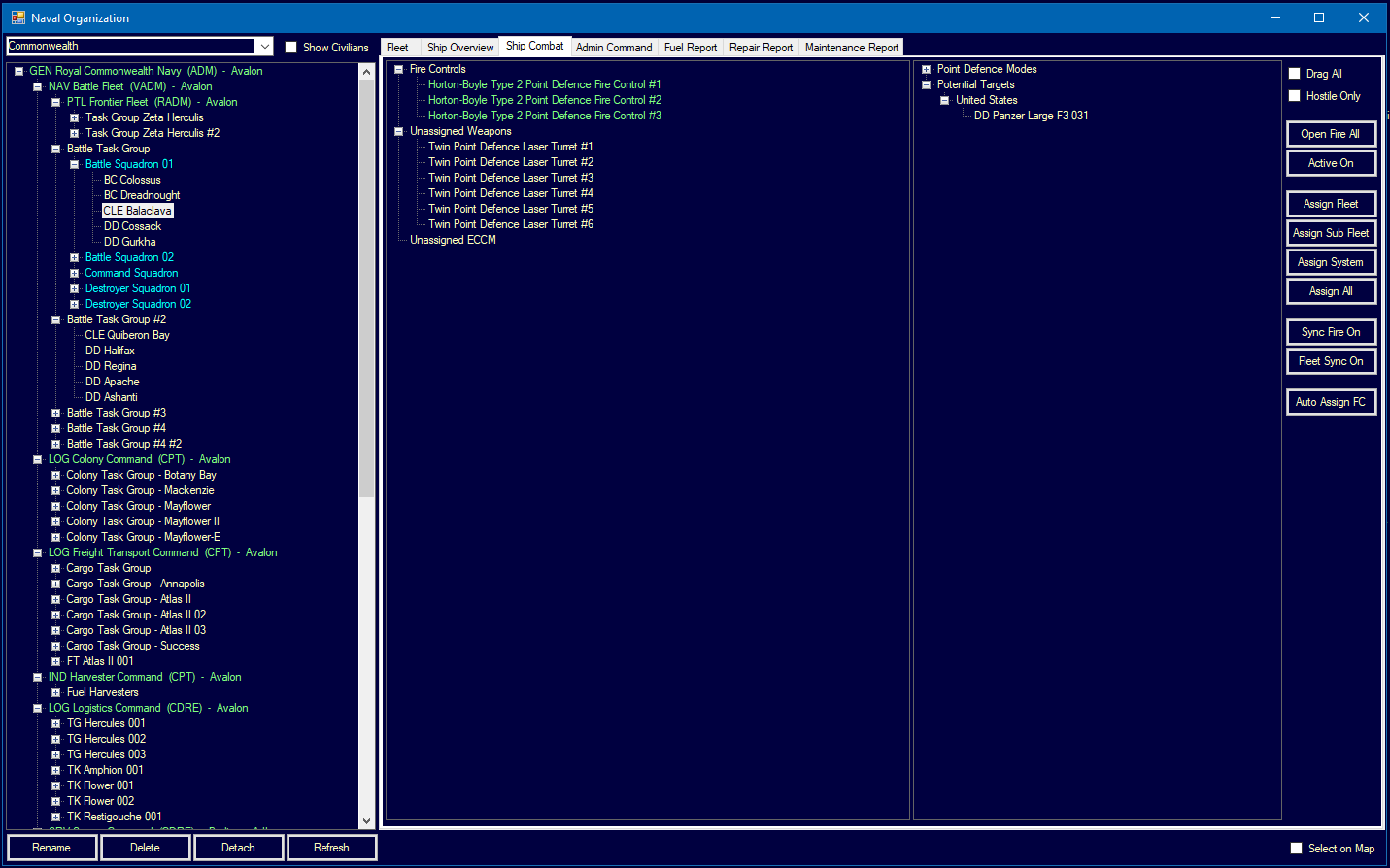
As your empire expands and your navy grows from a handful of survey ships to dozens or hundreds of vessels, proper fleet organization becomes essential. Aurora C# provides a hierarchical structure for organizing your ships, from individual vessels up to entire fleets. This section covers how to structure your forces for maximum effectiveness.
Contents
Updated: v2026.02.15
- 9.4 Fleet Organization
- Contents
- 9.4.1 Fleet Hierarchy
- 9.4.2 Naval Organization Window Interface
- 9.4.3 Assignment of Ships to Populations
- 9.4.4 Tractor Operations
- 9.4.5 Transfer Fleet to Alien Race
- 9.4.6 Designated Targets
- 9.4.7 Detaching and Merging
- 9.4.8 Naming Conventions
- 9.4.9 Sub Fleet View
- 9.4.10 Fleet Deletion Protection
- 9.4.11 Fleets as Text
- 9.4.12 Distance Travelled
- 9.4.13 Missile Salvos Tab (v2.2.1)
- 9.4.14 Fleet Window UI Navigation (v1.13.0)
- UI References and Screenshots
- Related Sections
- References
9.4.1 Fleet Hierarchy
Updated: v2026.02.15
Aurora C# replaces the VB6 version’s Task Forces and Task Groups with a hierarchical four-level naval organization system. This structure is managed through the Naval Organization window (F4), which provides full drag-and-drop functionality for reorganizing your forces.
The Four Levels:
-
Admin Commands – The top organizational tier. Every faction begins with one immovable top-level Admin Command (which can be renamed but not deleted). Additional Admin Commands branch downward in a tree formation, with unlimited nesting possible. Commands attach exclusively to other commands, never directly to fleets. Admin Commands can have specializations (such as “Training” – see Section 9.3 Task Groups).
-
Fleets – The operational units attached to Admin Commands. Many fleets can be attached to the same Admin Command, but each fleet can only be attached to one Admin Command at a time. Fleets serve as tactical units with on-map functions – they are what you see on the system map and issue movement orders to.
-
Sub-Fleets – Internal fleet divisions that organize ships within parent fleets without independent movement capabilities. All ships within the sub-fleet hierarchy move within the parent fleet. Unlimited nesting of sub-fleets is allowed. Detachable sub-fleets become independent fleets, with subordinate sub-fleets inheriting the status of their new parent (see Section 9.3 Task Groups for details).
-
Ships – Individual vessels assigned to fleets or sub-fleets. Ships cannot operate independently; they must belong to a fleet.
Drag-and-Drop Interface: The Naval Organization window supports full drag-and-drop functionality, allowing reorganization of commands, fleets, sub-fleets, and ships according to the hierarchy rules. Multiple Naval Organization windows can be open simultaneously with cross-window drag-drop capability, enabling you to move entire sections of the tree between views. This makes reorganizing large navies significantly more manageable than menu-based alternatives.
Admin Command Structure: Admin Commands serve as the organizational backbone of your navy. They provide:
- A clear chain of command visible in the tree structure
- Specialized functions (Training, Operations, etc.) based on the assigned commander
- Geographic or functional grouping of multiple fleets
- Commander bonuses that cascade to all attached fleets
Admin Command Creation Requirements:
- Each Admin Command requires a Naval Headquarters at a population to be created
- Each Naval Headquarters level costs 1200 BP \hyperlink{ref-9.4-1}{[1]} and can support multiple Admin Commands
Command Radius: Admin Commands have a command radius that determines how far their bonuses reach. Survey and Patrol commands operate at twice the standard radius (Radius=2.0), while all other command types use the standard radius (Radius=1.0). \hyperlink{ref-9.4-2}{[2]} (Command radius scaling with command level is unverified – the database stores a per-type radius multiplier but the exact level-to-radius progression is not directly represented.)
Seven Command Types: \hyperlink{ref-9.4-2}{[2]}
| Type | Bonus Fields (% of commander bonus applied) | Radius | Notes |
|---|---|---|---|
| General | 10% Survey, 5% Industrial, 10% Engineering, 10% CrewTraining, 10% FleetTraining, 10% Tactical, 10% Reaction, 5% Logistics | 1.0 | Versatile but diluted |
| Naval | 25% Engineering, 25% CrewTraining, 25% Tactical, 25% Reaction | 1.0 | Standard combat command |
| Patrol | 25% Engineering, 25% Reaction | 2.0 | Combat at extended radius |
| Survey | 25% Survey, 25% Engineering | 2.0 | Exploration at extended radius |
| Training | 100% FleetTraining | 1.0 | Only functions within command radius |
| Logistics | 10% Industrial, 25% Logistics | 1.0 | Supply chain management |
| Industrial | 25% Industrial, 10% Logistics | 1.0 | Resource extraction focus |
Hierarchical Bonuses: Nested commands multiply bonuses – a ship under a command within another command receives compounded benefits from the full chain. (unverified — #837 – requires live testing)
Admin Command Required Ranks (v2.0.0): The required rank for an admin command is determined by the highest of four factors (unverified — #837 – requires live testing):
- One rank higher than the highest-ranked individual ship commander directly under that admin command
- One rank higher than the highest required rank of any directly subordinate admin command
- One rank higher than the highest-ranked commander of any directly subordinate admin command
- The manually assigned minimum rank for the admin command
Fleet Commanders: Assigning a senior officer (see Section 16.1 Officer Generation) as fleet commander provides bonuses that cascade to all ships within the fleet:
- Fleet-wide coordination bonuses during combat
- Improved response times to new contacts
- Training benefits for subordinate officers (especially when attached to Training Admin Commands)
- The fleet commander’s rank should be appropriate to the fleet size
Organizational Principles:
By Mission:
- Exploration Fleet (survey groups, scout groups)
- Defense Fleet (system defense ships, orbital platforms)
- Strike Fleet (offensive combat groups)
- Logistics Fleet (transports, tankers, tenders)
By Region:
- Home Fleet (Sol or capital system)
- Sector Fleets (one per major operational area)
- Frontier Fleet (border patrol and response)
By Composition:
- Carrier Battle Groups (carriers + escorts)
- Cruiser Squadrons (homogeneous cruiser groups)
- Destroyer Flotillas (fast attack groups)
- Patrol Forces (light, fast picket groups)
9.4.1.1 Worked Example: Early-Game Command Hierarchy
The following demonstrates a practical command tree for an early-game navy:
Supreme Naval Command (Fleet Admiral)
├── Military Command (Fleet Admiral)
│   ├── Training Command (Admiral) — crew training skill preferred
│   ├── Survey Command — exploration ships
│   ├── Local Defense Command (Admiral) — reaction skill preferred
│   └── Rapid Mobility Command (Vice Admiral) — logistics skill preferred
└── Commercial Command (Vice Admiral)
    ├── Industrial Command (Lower Rear Admiral) — mining skill preferred
    ├── Material Logistics Command (Upper Rear Admiral) — logistics skill preferred
    └── Colonist Interest Command (Lower Rear Admiral) — logistics skill preferred
Key observations from this structure:
- Fleet Admirals can report to other Fleet Admirals – same-rank reporting is permitted (unverified — #837 – requires live testing)
- Promotion has no functional penalty – a promoted officer operates at the assigned rank regardless of promotion points (unverified — #837 – requires live testing)
- Logistics skill affects loading/unloading speed for Logistics commands (25% of commander bonus) \hyperlink{ref-9.4-2}{[2]}
- Industrial skill benefits Industrial commands (25% of commander bonus for mining and terraforming) \hyperlink{ref-9.4-2}{[2]}
- Reaction skill matters for Naval (25%) and Patrol (25%) commands \hyperlink{ref-9.4-2}{[2]}
- Commercial ships do not gain fleet training or crew grade – these are military-only mechanics (unverified — #837 – requires live testing)
- Newly constructed ships default into the Training Command; reassign manually to the appropriate command
Tip: Dragging one fleet onto another in the Naval Organization window merges them, deleting the dragged fleet’s name. Use this for quick fleet consolidation, but be aware the action removes the original fleet designation.
Tip: Use Admin Commands to mirror real-world naval organizational structures. For example, create a “Pacific Command” Admin Command containing your Frontier Fleet and Patrol Fleet, and a “Home Command” containing your Home Fleet and Training Fleet. This provides clear organizational context when your navy spans dozens of systems.
Tip: Name your fleets consistently and meaningfully. When managing 50+ task groups across multiple systems, clear names like “Alpha Centauri Patrol Group 2” save time compared to generic names like “Task Group 47.”
9.4.2 Naval Organization Window Interface
Updated: v2026.02.15
The Naval Organization window (F4) is the primary interface for managing all fleet structure. Its layout combines a tree view with tabbed detail panels.
Tree View Sidebar:
The left panel displays an expandable hierarchy of Admin Commands, Fleets, Sub-Fleets, and Ships. Nodes can be expanded or collapsed to navigate the command structure. Selecting any node updates the right-hand detail panel.
- Click the expansion arrows to drill into or collapse branches
- Drag nodes between positions in the tree (or between multiple open Naval Organization windows) to reassign
- Right-click any node for a context menu with common operations (rename, delete, detach, create sub-fleet)
- Collapse All button (v2.6.0): Collapses all expanded tree nodes in the Naval Organization window with a single click, useful when navigating large command hierarchies
- Expansion state persistence (v2.6.0): Tree node expanded/closed status is retained when saving the game, so you no longer need to re-expand your preferred view after loading
Admin Command Tab:
When an Admin Command is selected, the detail panel shows:
- Command type and assigned commander
- Command radius and current bonuses
- List of attached fleets
- Creation controls for new sub-commands or fleets
Fleet View Tabs:
When a fleet is selected, the detail panel provides five sub-tabs:
| Sub-Tab | Content |
|---|---|
| Miscellaneous | Fleet settings, max speed override, patrol orders, transfer fleet, designated targets |
| Officers | Assigned fleet commander, auto-promotion settings, officer roster |
| Movement Orders | Current order queue with add/remove/reorder controls |
| Standing Orders | Conditional behaviours (engagement rules, retreat thresholds, refuel policies) |
| History | Chronological fleet action log (movements, engagements, transfers) |
Race Window Fleet Summary: (v2.6.0)
The Race window displays aggregate fleet statistics for logistics planning:
- Total fleet fuel capacity: The combined fuel storage across all ships in your navy
- Total fleet maintenance capacity: The combined maintenance supply (MSP) storage across all ships
These values help you assess your navy’s operational reach and plan tanker and supply ship requirements for extended deployments.
Drag-and-Drop Operations:
- Drag a ship onto a different fleet or sub-fleet to reassign it
- Drag a fleet onto a different Admin Command to reparent it
- Drag one fleet onto another fleet at the same location to merge them (the dragged fleet’s name is deleted)
- Shift+drag-drop (v2.6.0): Holding Shift while dragging a fleet onto another fleet makes the dragged fleet a sub-fleet of the target instead of merging. This provides a faster workflow than using the right-click context menu to create sub-fleet relationships.
- Cross-window drag-drop is supported between multiple open Naval Organization windows
Right-Click Context Menus:
Right-clicking nodes provides quick access to:
- Rename (commands, fleets, sub-fleets)
- Create Fleet / Create Sub-Fleet
- Detach Sub-Fleet (promotes to independent fleet)
- Delete (with safeguards – see Section 9.4.10 Fleet Deletion Protection)
- Assign Commander
- Center Map on Fleet
9.4.3 Assignment of Ships to Populations
Updated: v2026.01.30
In C# Aurora, the assignment of support ships to populations operates at the fleet level rather than the individual ship level (as in VB6 Aurora). This simplification eliminates confusion about individual ship status while maintaining the same functional support mechanics.
Auto-Assignment Process:
When a fleet containing support ships (terraformers, asteroid miners, or other specialized production ships) reaches a population, the ships are automatically assigned. Additionally, when a population checks orbital space for assigned fleets during its production phase, it will automatically grab any unassigned fleets in orbit and assign them to itself.
This automation ensures support vessels remain productive without requiring manual intervention, addressing the VB6 issue where support ships could sit idle due to missed assignments during fleet transfers.
9.4.4 Tractor Operations
Updated: v2026.01.30
Tractor beams allow tugs to move ships that cannot move under their own power, such as space stations, disabled vessels, or ships being relocated.
Tractor Any Ship in Fleet:
The “Tractor Any Ship in Fleet” order allows a tug to automatically tractor the largest ship in the target fleet without requiring individual ship designation. This streamlines management of groups of space stations (terraformers, fuel harvesters, orbital miners, etc.) being relocated, enabling automated order cycles for moving multiple specialized vessels efficiently.
Tractor Rules:
Standard tractoring mechanics apply:
- A tug vessel must be capable of tractoring (requires Ship-to-Ship Tractor Beam component)
- Ships are limited to one tractor beam each, and each tug can only tow one target \hyperlink{ref-9.4-3}{[3]}
- Multiple tugs cannot combine their strength on a single target \hyperlink{ref-9.4-4}{[4]} — to move large stations faster, build heavier tugs rather than assigning multiple tugs
- The target fleet must be present in the system
- The tractor order integrates with Aurora’s broader fleet management system for automated relocation operations
- As of v1.12.0, tractored ships correctly inherit the towing fleet’s speed for fuel consumption calculations, and tractoring properly accounts for the combined mass when calculating transit times through jump points
For tractor beam component specifications and towing speed formulas, see Section 8.6.16 Tractor Beams.
9.4.5 Transfer Fleet to Alien Race
Updated: v2026.01.30
Players can transfer entire fleets to known alien races using the Miscellaneous tab in the Naval Organization window’s Fleet view.
Transfer Process:
- Select the target race from the available list
- Click “Transfer Fleet”
- The fleet and all ships contained therein, including parasites, are transferred to the selected alien race
Key Mechanics:
- The transfer automatically reveals unknown systems and generates necessary alien class/ship records if needed
- There is no “overhaul factor” penalty since this is a willing transfer rather than a surrender or capture
- Transfers to Non-Player Races (NPRs) are possible but not recommended for inexperienced players
NPR Fleet Classification:
When a fleet is transferred to an NPR, the AI assigns appropriate Ship AIs and Fleet AIs based on the fleet’s perceived role. The NPR determines fleet type by checking for specific modules in priority order:
- Specialized sensors (gravitational, geological)
- Mission modules (terraforming, harvesting, salvage)
- Weapon systems (missile/beam fire controls)
- Utility systems (refueling, transport, cryogenic)
- Cargo holds (freighter classification)
- Active sensors (scout classification)
Caution: Complex custom designs may cause problems with the NPR AI if they are not easily classified. Database backups are recommended before transferring fleets to NPRs.
9.4.6 Designated Targets
Updated: v2026.01.30
Ships can be designated as training and testing targets for naval exercises using the “Designate as Target” checkbox on the Miscellaneous tab under the Ship Overview tab in the Naval Organization window.
How Designation Works:
- When a ship receives target designation, it becomes automatically detected as an active sensor contact by its parent race
- This triggers the creation of an “alien race” based on the parent faction, complete with associated classes and ships
- Other ships belonging to the same race can then target and attack the designated ship, enabling controlled target practice scenarios
Operational Control:
Designated targets maintain full control under their parent race:
- They can be issued direct orders
- They can be set to defend themselves autonomously
- They can be used in fleet exercises against other designated targets
This mechanic facilitates experimentation with different weapon systems in realistic engagement scenarios, allowing players to conduct naval exercises without creating permanent enemies or affecting diplomatic relationships.
9.4.7 Detaching and Merging
Updated: v2026.01.30
The ability to split and combine task groups dynamically is a core tactical and logistical capability.
Detaching Ships:
- Select the task group containing the ship(s) you want to detach
- In the Naval Organization window, select the specific ships
- Choose “Detach” to form them into a new task group, or “Transfer” to move them to an existing group in the same location
When to Detach:
- A damaged ship needs to return to base for repairs while the fleet continues operating
- A tanker has finished refueling the fleet and needs to return for more fuel
- A fast scout needs to investigate a contact while the main body holds position
- You want to split forces for a pincer maneuver
Merging Task Groups:
- Both task groups must be at the same location (same coordinates in space)
- Select the groups in the Naval Organization window
- Choose “Merge” to combine them into a single task group
When to Merge:
- Reinforcements have arrived to join the main fleet
- Multiple patrol groups are concentrating for a major operation
- Transport groups are combining for a convoy
Important Constraints:
- Ships can only be transferred between groups that are at the same location
- Detaching or merging while in transit will cause the groups to stop at their current position
- The merged group’s speed will be limited to the slowest ship in the combined group
- Orders assigned to the original groups are lost when merging – you must reassign orders to the new combined group
Split Operations: For combat situations, you might pre-plan splits by organizing your task group with future detachment in mind. For example, keep your missile ships and beam ships in the same group for transit, but plan to detach the beam group for close engagement while the missile group provides standoff fire.
Tip: Before a major operation, rehearse your planned detachments mentally. Which ships go where? What orders does each sub-group get? Having this planned in advance means you can execute splits quickly when the tactical situation demands it.
Warning: When detaching a single ship (e.g., a damaged vessel), remember it becomes its own one-ship task group and needs its own orders. Forgetting to order a detached ship home is a common mistake that leaves cripples drifting in space.
9.4.8 Naming Conventions
Updated: v2026.01.30
Aurora C# supports both automatic and custom naming for ships, task groups, and fleets. Good naming practices become essential as your navy grows.
Ship Names: Individual ships are named when they complete construction. The game can auto-generate names from a list based on the ship class’s hull type, or you can assign custom names.
Class-Based Naming: Each ship class can be associated with a name theme with expanded flexibility in C# Aurora. Key features:
- Each ship class can have its own dedicated naming theme applied
- Names from a theme can be selected either “in order” or “randomly”
- Every class supports both Prefix and Suffix naming options
- A single naming theme can be applied to many different classes with different prefixes or suffixes
- As of v2.1.0, a naming option exists that names every ship after the class without a numeric suffix (useful for unique-class flagships or named vessels where sequential numbering is undesirable)
Random Class Naming: (v2.7.0) A checkbox enables random race-themed class names instead of sequential naming upon class creation. This option defaults to enabled. When active, new ship classes receive names drawn from the race’s naming theme rather than generic sequential identifiers (e.g., “Class 1”, “Class 2”). The setting can be toggled per-race in the race configuration interface.
Example Implementations:
- Wind-class destroyers with suffix: Arctic Wind, Bitter Wind, Cold Wind, Desert Wind
- Dragon-class carriers with prefix: Red Dragon, Night Dragon, Gold Dragon, Shadow Dragon
This flexibility allows a single naming theme to generate thematically appropriate names across multiple ship classes by varying the affixes applied, reducing the need to create entirely separate naming conventions for each vessel type.
Adding Custom Naming Themes:
Players can create custom ship naming themes through a simple import process:
- Prepare a text file containing one name per line (no specific formatting requirements beyond this)
- Access the dedicated import button within the game interface
- Enter a theme name when prompted through the input dialog
- Select the prepared text file through the Windows file browser
Once imported, the custom naming theme is added to the game’s database for both the current campaign and all future games. The theme becomes available alongside built-in options, and players can assign weights or probabilities to different themes during race creation for mixed naming conventions within a single faction.
Adding Custom Commander Name Themes:
Commander name themes require three separate text files:
- One file with male first names (one per line)
- One file with female first names (one per line)
- One file with surnames (one per line)
File names have no naming convention requirements. To import:
- Create the three text files
- Access the commander name themes interface and click the import button
- Enter a theme name when prompted
- Select each file sequentially when prompted (male names, female names, surnames)
The new commander name theme is added to the database for the current game and all future games. Themes follow a “First Name - Surname” pattern with separate pools for male and female first names, generating gender-appropriate commander names dynamically.
Hull Numbers:
Hull numbers are sequential identifiers appended to ship hull designations. The sixteenth destroyer built by a race, for example, will be designated DD-16. Numbers increment continuously across all ship classes of the same hull type, regardless of class changes.
Hull Number Assignment:
- Players can manually specify hull numbers via the Miscellaneous sub-tab in the Ship Overview window, provided that number is not already in use
- Setting a higher number than existing ones causes subsequent ships to increment from that point
- The “Ships in Class” tab of the Ship Class window provides an option to reset hull numbers for all ships sharing the same hull type (done in order of original creation)
Hull Number Display: Two toggleable flags control visibility:
- Race-level flag (Tactical Map display options): Disables hull number display for a specific race across all game locations
- Class-level flag (Ship Class window Miscellaneous tab): Toggles display for individual ship classes
Visual example: DDG-51 Arleigh Burke vs. DDG Arleigh Burke
Task Group Names: Task groups can be given any name you choose. Common conventions include:
- Functional: “Survey Group Alpha,” “Transport Convoy 3,” “Fuel Tanker Run”
- Military: “1st Destroyer Squadron,” “Carrier Battle Group 2,” “Patrol Force Charlie”
- Geographic: “Alpha Centauri Defense Group,” “Ross 128 Picket”
- Numbered: Simple sequential numbering for large forces
Fleet Names: Fleets typically receive grand names reflecting their purpose or area of operations:
- “Home Fleet” – Primary defense force
- “Grand Fleet” – Main offensive force
- “5th Fleet” – Numbered fleet designation
- “Frontier Command” – Border patrol and response force
Renaming: All organizational elements can be renamed at any time through the Naval Organization window. Renaming has no gameplay effect but significantly impacts your ability to manage a large navy.
Naming Best Practices:
- Include the mission type in task group names (Survey, Patrol, Combat, Transport)
- Use consistent numbering schemes across similar groups
- Update names when a group’s mission changes
- Consider including the system name for groups with permanent station assignments
Tip: Develop a personal naming convention early and stick with it. When you have 30+ task groups across 10 star systems, consistent naming is the difference between efficient management and chaos.
Tip: Some players use prefixes to indicate group composition at a glance: “DD-“ for destroyer groups, “CA-“ for cruiser groups, “CV-“ for carrier groups, and “TF-“ for mixed task forces. This allows quick identification in the task group dropdown lists.
9.4.9 Sub Fleet View
Updated: v2026.01.30
The Naval Organization window allows players to view summary details of sub-fleets in the same way as parent fleets, providing visibility into sub-fleet composition and status without navigating away from the main interface.
Display Behaviour:
- When a sub-fleet is selected, its summary information is displayed in the detail panel
- The interface shows distinct information depending on whether a fleet or sub-fleet is selected
Order Scope Limitation: The movement orders, standing orders, and history tabs apply only to the fleet (or the parent fleet if a sub-fleet is selected). Sub-fleets cannot have independent movement or standing orders – these commands function exclusively at the parent fleet level.
9.4.10 Fleet Deletion Protection
Updated: v2026.01.30
Fleet deletion is protected by safeguards that prevent accidental loss of ships involved in active construction projects.
v2.1.0 Protections: Fleets cannot be deleted if they serve as targets for shipyard construction tasks. This protection applies whether deletion is attempted manually or through detaching/tractoring away the final vessel.
v2.2.0 Expanded Protections: The system additionally prevents fleet deletion when the fleet is designated as the target for:
- Space station construction projects
- Fighter factory construction tasks
These protections create a dependency relationship where critical fleets remain protected until their associated construction projects complete or are reassigned to alternative targets.
9.4.11 Fleets as Text
Updated: v2026.01.30
The Naval Organization window includes a “Fleets as Text” button that generates a formatted text version of all ships in a selected fleet, designed for use in After-Action Reports (AARs) and forum posts.
Output Format:
- Each ship class in the fleet is listed with the names of each ship of that class alongside
- Individual ships of 1000+ tons list their ship names explicitly
- Smaller vessels (1000 tons or less) display a quantity count instead of individual names (e.g., “6x Thunderhawk II class Assault Transport”)
Usage:
- The text output is pre-highlighted upon generation, allowing immediate Ctrl+C to copy
- Paste directly into forum posts, documents, or AARs without manual transcription
- Provides a quick snapshot of fleet composition for documentation purposes
9.4.12 Distance Travelled
Updated: v2026.01.30
All ships track their total distance travelled throughout their service life. This metric is displayed on the Ship Overview under the Construction Date field.
Tracking Rules:
- Ships in hangars do not increment their distance counter
- Towed ships continue to accumulate distance normally
- Each ship maintains its own independent distance log
9.4.13 Missile Salvos Tab (v2.2.1)
Updated: v2026.01.30
The Naval Organization window includes a “Missile Salvos” tab that provides centralized management of all active missile salvos for the current race.
Functionality:
- Displays all in-flight missile salvos belonging to the player’s race
- Individual salvos can be selected and deleted from this tab
- Provides a consolidated view of all missile activity without needing to locate salvos on the system map
Use Cases:
- Cleaning up stray salvos that have lost their targets
- Aborting missile attacks that are no longer strategically desirable
- Monitoring total missile expenditure across multiple engagements simultaneously
9.4.14 Fleet Window UI Navigation (v1.13.0)
Updated: v2026.01.30
The Fleet Window includes several double-click shortcuts for navigating between officers, ships, and command structures:
Officer Navigation:
- With a fleet selected in the treeview, double-clicking the fleet commander in the fleet summary opens the Commanders window with that officer selected
- With a ship selected in the treeview, double-clicking one of the ship’s officers in the ship summary opens the Commanders window with that officer selected
Ship Navigation:
- With a fleet selected in the treeview, double-clicking a ship in the Ship List tab changes the treeview selection to that ship
- Holding Control while double-clicking a ship in the Ship List tab opens the Commanders window with that ship’s commander selected
- (v2.6.0) Double-clicking a ship in the Ship List window selects that ship in the Naval Organization window, enabling cross-window navigation between the ship list and the organizational hierarchy
These shortcuts streamline workflow by reducing the clicks needed to access frequently-used commander and ship information from the fleet management interface.
UI References and Screenshots
Updated: v2026.01.30
- Fleet Window Layout — fleet hierarchy and task group management
- Forum screenshots:
- Automated Assignment — automated fleet role assignment
Related Sections
- Section 9.3 Task Groups – Task group formation, speed, and conditional orders
- Section 9.5 Orders – Fleet and task group orders
- Section 12.1 Fire Controls – How fleet organization affects combat performance
- Section 12.7 Planetary Defence Centres – PDC coordination with orbital fleets in layered defense
- Section 16.1 Officer Generation – Officer types for fleet and admin command assignments
- Section 16.3 Assignments – Assigning commanders to fleets and commands
References
\hypertarget{ref-9.4-1}{[1]} AuroraDB.db, DIM_PlanetaryInstallation table: Naval Headquarters Cost=1200.0 confirms 1,200 BP per installation.
\hypertarget{ref-9.4-2}{[2]} Aurora C# game database (AuroraDB.db v2.7.1) – DIM_NavalAdminCommandType table: all 7 command types verified with exact bonus percentages and radius multipliers. General (ID=0): 10% Survey/Engineering/CrewTraining/Tactical/Reaction, 5% Industrial/Logistics, Radius=1.0. Naval (ID=1): 25% Engineering/CrewTraining/Tactical/Reaction, Radius=1.0. Survey (ID=2): 25% Survey/Engineering, Radius=2.0. Patrol (ID=3): 25% Engineering/Reaction, Radius=2.0. Logistics (ID=4): 10% Industrial, 25% Logistics, Radius=1.0. Training (ID=5): 100% FleetTraining, Radius=1.0. Industrial (ID=6): 25% Industrial, 10% Logistics, Radius=1.0.
\hypertarget{ref-9.4-3}{[3]} AuroraWiki2 (aurorawiki2.pentarch.org), “Tractor Beam” – “Ships are limited to one tractor beam each.” Aurora C# game database (AuroraDB.db v2.7.1) – DIM_ComponentType: Tractor Beam (ComponentTypeID=37) has SingleSystem=1.
\hypertarget{ref-9.4-4}{[4]} Aurora Forums, “Fleet Haulers: Multiple Tractor Beam Ships” (aurora2.pentarch.org/index.php?topic=13474.0) – “you can only tractor one ship each” confirms 1:1 tug-to-target relationship; multiple tugs cannot combine on same target.