3.4 Event Log
Updated: v2026.02.02

Contents
Updated: v2026.02.02
3.4.1 Event Types
Updated: v2026.01.30
The Event Log is Aurora’s primary communication channel to the player. Since the game processes events in batches during time advances (rather than in real-time), the Event Log records everything significant that occurred during each increment. Learning to read and respond to events is a core gameplay skill.
Event Types in the Database:
Aurora defines 240 individual event types in its database \hyperlink{ref-3.4-6}{[6]}. The following is an editorial grouping of common event types for reference. The game itself does not categorize events into these groups – individual event types are listed in the DIM_EventType database table \hyperlink{ref-3.4-6}{[6]}.
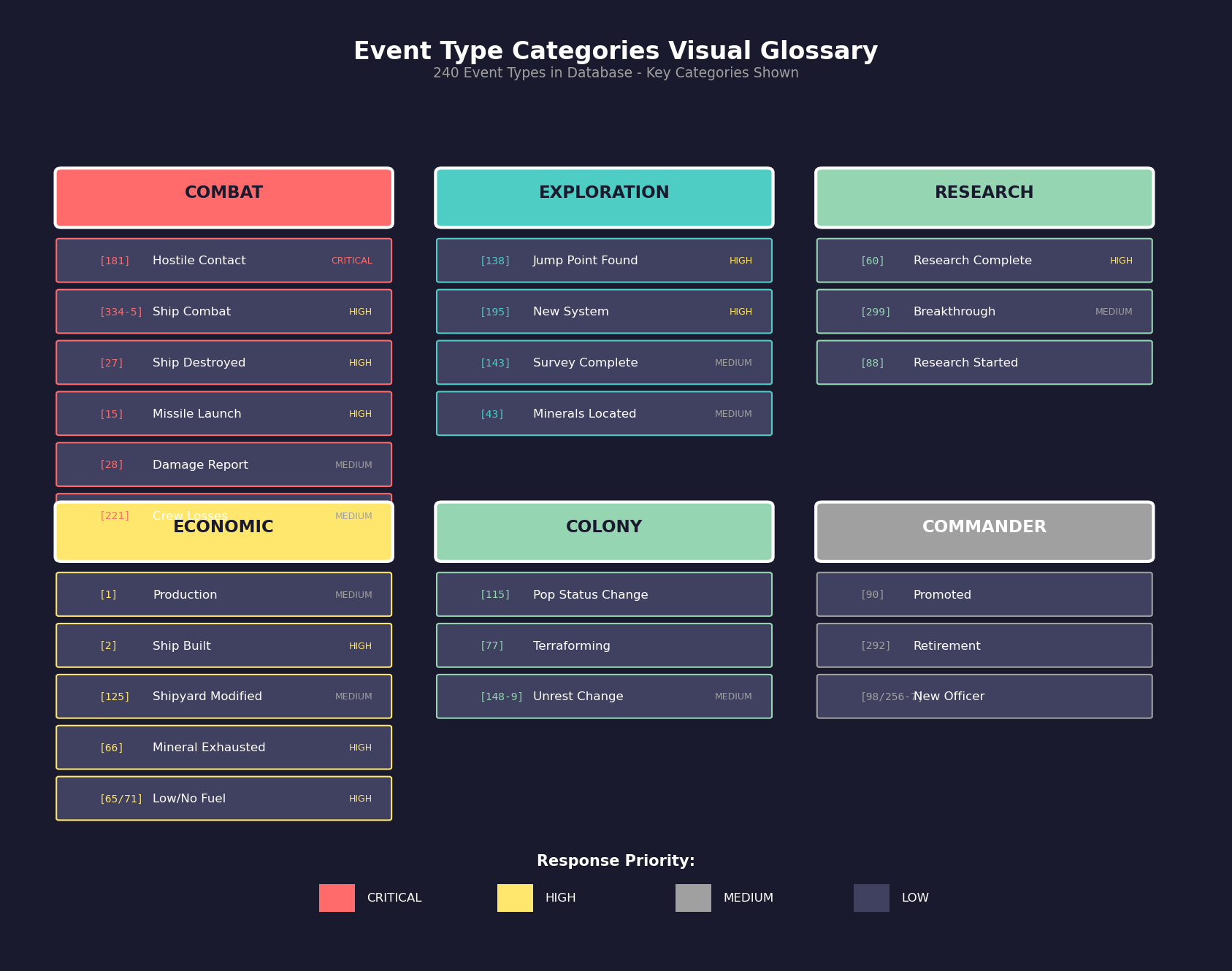
Military / Combat Events:
- New Hostile Contact (EventTypeID 181): An unknown or hostile ship has been detected \hyperlink{ref-3.4-6}{[6]} (see Section 11.1 Thermal and EM Signatures). This is often the first warning of an NPR presence.
- Ship Combat - Energy / Missile (EventTypeIDs 334-335): Ships have engaged targets with energy or missile weapons \hyperlink{ref-3.4-6}{[6]}
- Ship Destroyed (EventTypeID 27): A ship (yours or enemy) has been destroyed \hyperlink{ref-3.4-6}{[6]}
- Missile Launch (EventTypeID 15): Missile salvos launched at targets \hyperlink{ref-3.4-6}{[6]}
- Damage Report (EventTypeID 28): Damage reports for ships under fire \hyperlink{ref-3.4-6}{[6]}
- Crew Losses (EventTypeID 221): Personnel losses on damaged ships \hyperlink{ref-3.4-6}{[6]}
Exploration Events:
- Jump Point Detected (EventTypeID 138): A gravitational survey has revealed a new jump point \hyperlink{ref-3.4-6}{[6]}
- New System Discovered (EventTypeID 195): First entry into a previously unknown system \hyperlink{ref-3.4-6}{[6]}
- Geo Survey Complete (EventTypeID 143): A body has been fully surveyed for minerals \hyperlink{ref-3.4-6}{[6]}
- Minerals Located (EventTypeID 43): A geological survey has detected mineral deposits (includes quantities and accessibility) \hyperlink{ref-3.4-6}{[6]}
Research Events:
- Research Completed (EventTypeID 60): A technology has been successfully researched \hyperlink{ref-3.4-6}{[6]} (see Section 7.1 Technology Tree)
- Breakthrough Achieved (EventTypeID 299): A scientist has achieved a breakthrough, accelerating research \hyperlink{ref-3.4-6}{[6]}
- Research Started (EventTypeID 88): Notification when a new research project begins (v1.9.0+) \hyperlink{ref-3.4-1}{[1]} \hyperlink{ref-3.4-6}{[6]}
Economic Events:
- Production (EventTypeID 1): An installation or component batch has finished building \hyperlink{ref-3.4-6}{[6]}
- Ship Construction (EventTypeID 2): A ship has finished construction \hyperlink{ref-3.4-6}{[6]}
- Shipyard Modified (EventTypeID 125): A shipyard modification has completed \hyperlink{ref-3.4-6}{[6]}
- Mineral Exhausted (EventTypeID 66): A mineral deposit has been exhausted \hyperlink{ref-3.4-6}{[6]}
- Low Fuel / Fuel Exhausted (EventTypeIDs 65, 71): Ships or colonies running low on or out of fuel \hyperlink{ref-3.4-6}{[6]}
- Production Started (EventTypeID 320): Notification when a new industrial project begins (v1.9.0+) \hyperlink{ref-3.4-1}{[1]} \hyperlink{ref-3.4-6}{[6]}
Colony Events:
- Pop Status Change (EventTypeID 115): Colony population status has changed \hyperlink{ref-3.4-6}{[6]}
- Terraforming Report (EventTypeID 77): Atmospheric changes from terraforming operations \hyperlink{ref-3.4-6}{[6]}
- Unrest Increasing / Decreasing (EventTypeIDs 148, 149): Political stability changes in colonies \hyperlink{ref-3.4-6}{[6]}
Commander Events:
- Commander Promoted (EventTypeID 90): A commander has been promoted based on experience \hyperlink{ref-3.4-6}{[6]}
- Retirement (EventTypeID 292): A commander has left service \hyperlink{ref-3.4-6}{[6]}
- New Naval Officer / New Scientist / New Administrator (EventTypeIDs 98, 257, 256): A new officer has joined your pool \hyperlink{ref-3.4-6}{[6]}
- Commander Unassigned (EventTypeID 322): A commander’s assignment has ended \hyperlink{ref-3.4-6}{[6]}
Diplomatic Events:
- New Alien Race (EventTypeID 147): A previously unknown race has been discovered \hyperlink{ref-3.4-6}{[6]} (see Section 15.1 Alien Races)
- Diplomacy (EventTypeID 180): Diplomatic interactions with other races \hyperlink{ref-3.4-6}{[6]}
- Successful Espionage (EventTypeID 157): Intelligence operations have succeeded \hyperlink{ref-3.4-6}{[6]}
Additional Event Types (v1.9.0+) \hyperlink{ref-3.4-1}{[1]} \hyperlink{ref-3.4-2}{[2]}:
- Fighter Construction (EventTypeID 319): Replaces standard ship construction notifications for fighter-class vessels \hyperlink{ref-3.4-1}{[1]}
- Deployment Time Exceeded (EventTypeID 321): Warning when a fleet’s deployment time has exceeded its limit \hyperlink{ref-3.4-1}{[1]}
3.4.2 Event Display and Colours
Updated: v2026.01.30
Events in Aurora use a colour-coding system to help players quickly identify event types and severity.
Colour Configuration:
- Each event type can be assigned custom text and background colours
- Colours are set per-race and persist across game sessions
- Colour data is stored in the
FCT_EventColourdatabase table, keyed by EventTypeID and RaceID \hyperlink{ref-3.4-6}{[6]}
Event Colour Import/Export:
The Events Window provides Import and Export buttons for event colour configurations, allowing customization to be shared across races and games \hyperlink{ref-3.4-5}{[5]}:
- Export Colours: Prompts for a file name and location, then saves a CSV file containing Event ID, Background Colour (integer), and Text Colour (integer) – one row per event type. These values correspond to the
DIM_EventTypeandFCT_EventColourdatabase tables \hyperlink{ref-3.4-6}{[6]}. - Import Colours: Reads a CSV file in the same format. Only event types referenced in the file are updated; unmentioned event types retain their existing colour settings. This enables partial updates without disrupting your full colour scheme.
This portability feature is particularly useful when starting new games or creating multiple races, as you can maintain a consistent event display without reconfiguring colours manually each time.
Tactical Map Event Display: Events can be displayed directly on the tactical map (see Section 3.2 System Map for details). Key features:
- Events on the tactical map use the same text and background colours as the Events Window
- The date and increment length are shown even when no event occurred during the increment
- Double-clicking an event on the tactical map centres the view on the event location
SM Mode - Multi-Race Events: In SpaceMaster Mode, an additional display option shows events for all player races on the tactical map with an extra column identifying which faction each event belongs to.
3.4.3 Filtering Events
Updated: v2026.01.30
With potentially hundreds of events generated per time increment (especially in large games), filtering is essential for managing the information flow.
Per-Event-Type Filtering:
Aurora’s event filtering operates on individual event types, not broad categories \hyperlink{ref-3.4-7}{[7]}. The game stores hidden event preferences in the FCT_HideEvents database table, which records each RaceID and EventID combination that the player has chosen to suppress. With 240 distinct event types defined in the database \hyperlink{ref-3.4-7}{[7]}, players have granular control over exactly which notifications they wish to see.
How Filtering Works:
- Each of the 240 event types can be individually shown or hidden
- Hidden event preferences are stored per-race and persist across game sessions
- The Events Window provides checkboxes or toggles for each event type
- When an event type is hidden, it is added to the
FCT_HideEventstable; removing the hide restores visibility
Note: The editorial groupings in Section 3.4.1 (Military/Combat, Exploration, Research, etc.) are for reference purposes only – the game itself does not use category-based filtering. To hide all “combat events,” for example, you would need to individually toggle each combat-related event type.
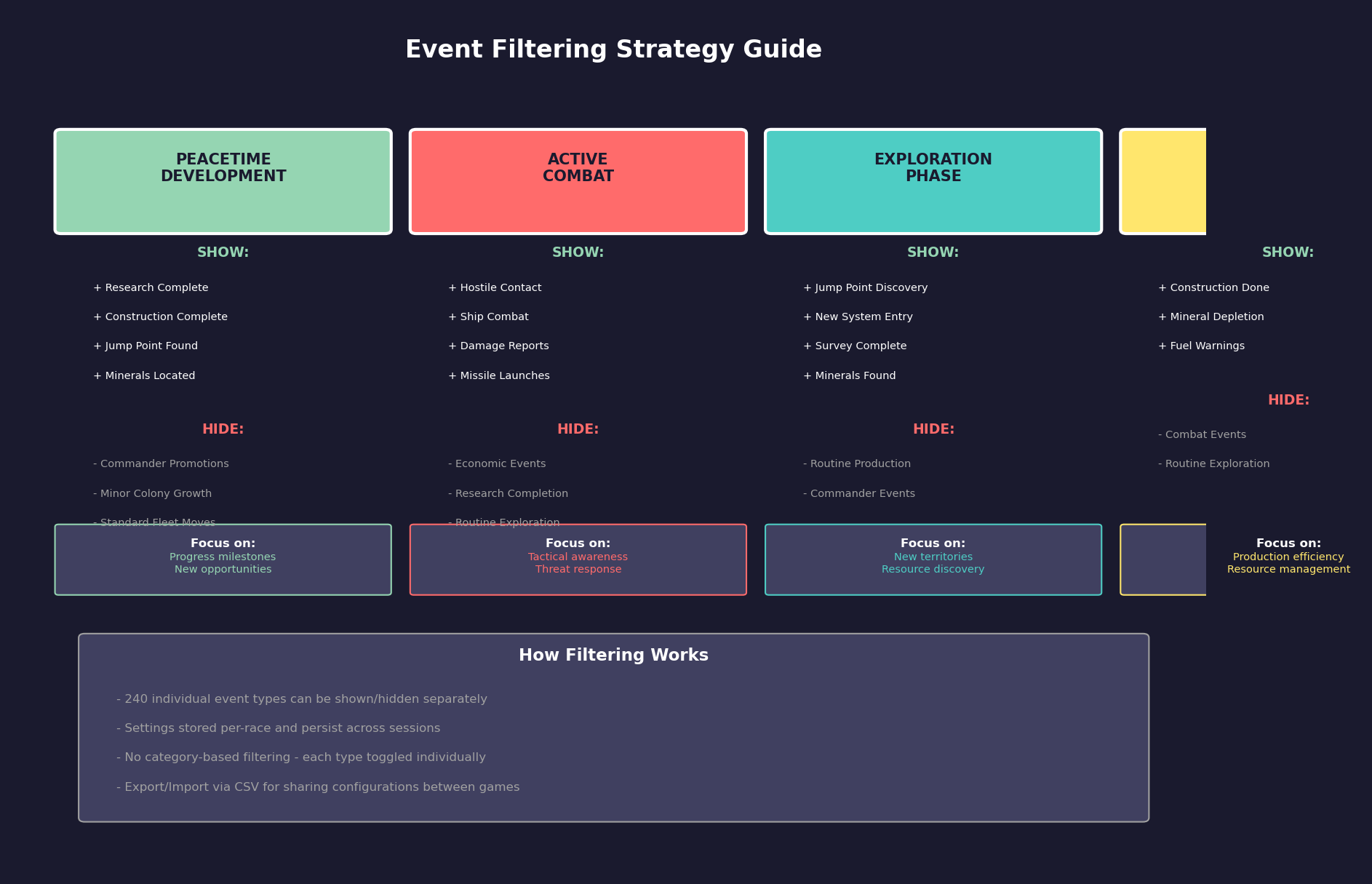
Filter Strategies:
During Peacetime Development:
- Show: Research Complete, Construction Complete, Mineral discoveries, jump point discoveries
- Hide: Routine commander promotions, minor colony growth, standard fleet movements
- Focus on: Progress milestones and new opportunities
During Active Combat:
- Show: All combat events, hostile contacts, weapon impacts, ship damage
- Hide: Economic events, research completions, routine exploration
- Focus on: Tactical situation awareness
During Exploration Phase:
- Show: jump point discoveries, new system entries, survey completions, mineral findings
- Hide: Routine economic production, minor commander events
- Focus on: New territories and resources
During Economic Build-Up:
- Show: Construction completions, mineral depletions, fuel warnings
- Hide: Combat events (if no active threats), routine exploration
- Focus on: Production efficiency and resource management
Time-Based Filtering:
- The Event Log typically shows events from the most recent time advance
- You can scroll back through historical events
- Very old events may be cleared or archived depending on log size settings
3.4.4 Event-Driven Gameplay
Updated: v2026.02.02
Aurora does not actively notify you of most things – the Event Log is your eyes and ears. Developing an event-driven play style is essential for effective empire management.
The Event-Check Loop: The fundamental gameplay loop in Aurora is:
- Advance time (choose an appropriate increment)
- Check the Event Log for anything important
- Respond to events (give orders, adjust priorities, change plans)
- Advance time again
- Repeat
Interrupt Events: Certain critical events automatically interrupt time advancement, stopping the clock regardless of your selected increment \hyperlink{ref-3.4-4}{[4]}:
- Hostile contact detected (unverified – #1257 – sourced from Fandom Wiki; not confirmed in the DIM_EventType PlayerInterrupt column)
- Ship under fire (unverified – #1257 – sourced from Fandom Wiki; not confirmed in the DIM_EventType PlayerInterrupt column)
- Ship destroyed (unverified – #1257 – sourced from Fandom Wiki; not confirmed in the DIM_EventType PlayerInterrupt column)
- Research completions
- Shipyard task completions
- Industry build completions
- Unassigned research labs (safeguard against wasted capacity)
Note: The database-verified interrupt events (Research Completed, Ship Construction, Production, and Inactive Lab) are documented with EventTypeID references in Section 3.1.12 Status Bar. The combat-related interrupts listed above (hostile contact, ship under fire, ship destroyed) are sourced from community documentation and have not been confirmed against the game database’s PlayerInterrupt field.
When an interrupt occurs, the time advance stops at that exact moment. This prevents catastrophic events from playing out unmonitored (e.g., an enemy fleet destroying your colony during a 30-day advance). After addressing the interrupt, you can resume advancing time (often at a shorter increment given the new situation).
Configuring Interrupts:
The mechanism for configuring which events trigger interrupts is not fully documented in available sources (unverified — #717 – the specific UI location and controls for interrupt configuration have not been confirmed). The following is general guidance:
- Hostile contacts and damage events are typically configured as mandatory interrupts
- Research completion, construction completion, and fleet arrival at destination are commonly enabled
- Some players also enable interrupts for mineral discoveries or new commander generation
- Enabling too many interrupts can fragment long time advances unnecessarily
Responding to Key Events:
“Hostile Contact Detected”:
- Stop. Reduce time increment to 30 seconds or less (recommended practice).
- Switch to the system map for the relevant system.
- Identify the contact (size, speed, bearing).
- Assess: Is this a threat? Is your fleet in position?
- Give combat orders if needed or retreat if outmatched.
- Advance at short increments until the situation resolves.
“Research Complete”:
- Open the Research window.
- Note what was completed – does this unlock new ship components?
- Assign the freed scientist to a new project.
- Consider whether new technology enables better ship designs.
“Mineral Deposit Exhausted”:
- Check which mineral was depleted and where.
- Assess remaining reserves: is this critical?
- Redirect mining efforts or establish new mining operations.
- If critical (e.g., Gallicite exhausted), this may require urgent expansion.
“Construction Complete”:
- Check what was built (ship, installation, etc.).
- For ships: Assign to a fleet, give orders.
- For installations: Verify they are operating as expected.
- Queue the next construction project if appropriate.
Building Good Habits:
- Never advance more than 5-day increments during peacetime without checking events between each advance
- After each advance, scan the log even if nothing seems urgent – pattern awareness prevents surprises
- If you see multiple “hostile contact” events, something has gone wrong and needs immediate attention
- Keep notes (mental or written) about expected upcoming events: “My ship should arrive at Alpha Centauri in 15 days” – if it does not, something intervened
- Mineral depletion warnings are not emergencies but should not be ignored – they represent future bottlenecks
The Event Log as Narrative: Beyond pure gameplay utility, the Event Log tells the story of your empire. A sequence of events like:
Jump point discovered -> New System Explored -> Hostile Contact Detected -> Weapons Fire -> Ship Destroyed
…tells a story of exploration turned deadly. Many players use the Event Log as the basis for their After-Action Reports, weaving game events into compelling narratives.
UI References and Screenshots
Updated: v2026.01.30
- Event Log Window Layout – filter controls, colour coding, and interrupt configuration
Related Sections
- Section 7.1 Technology Tree – Research completion events
- Section 11.1 Thermal and EM Signatures – Contact detection and sensor events
- Section 12.1 Fire Controls – Combat event resolution
- Section 15.1 Alien Races – First contact and diplomatic events
- Section 17.1 Geological Survey – Jump point discovery and survey events
References
\hypertarget{ref-3.4-1}{[1]} Aurora Forums, “C# Aurora Changes List v1.9.0” (aurora2.pentarch.org/index.php?topic=11010.msg126959) – v1.9.0 event types confirmed: Fighter Construction, Research Started, Production Started, Deployment Time Exceeded
\hypertarget{ref-3.4-2}{[2]} Aurora C# game database (AuroraDB.db v2.7.1), DIM_EventType – Event type IDs verified: Fighter Construction (319), Research Started (88), Production Started (320), Deployment Time Exceeded (321); event names corrected to match database descriptions
\hypertarget{ref-3.4-3}{[3]} AuroraWiki, “Event Updates” (aurorawiki2.pentarch.org/index.php?title=Event_Updates) – Event categories, filter options, colour configuration
\hypertarget{ref-3.4-4}{[4]} Aurora Fandom Wiki, “Time, Turns and Interrupts” (aurora4x.fandom.com/wiki/Time,_Turns_and_Interrupts) – Interrupt events list
\hypertarget{ref-3.4-5}{[5]} AuroraWiki, “C-Game Interface” (aurorawiki2.pentarch.org/index.php?title=C-Game_Interface) – Event Window features including Import/Export colours
\hypertarget{ref-3.4-6}{[6]} Aurora C# game database (AuroraDB.db v2.7.1), DIM_EventType and FCT_EventColour tables – 240 event types defined; individual EventTypeIDs verified: New Hostile Contact (181), Ship Destroyed (27), Missile Launch (15), Damage Report (28), Crew Losses (221), Ship Combat - Energy (334), Ship Combat - Missile (335), Jump Point Detected (138), New System Discovered (195), Geo Survey Complete (143), Minerals Located (43), Research Completed (60), Breakthrough Achieved (299), Production (1), Ship Construction (2), Shipyard Modified (125), Mineral Exhausted (66), Low Fuel (65), Fuel Exhausted (71), Pop Status Change (115), Terraforming Report (77), Unrest Increasing (148), Unrest Decreasing (149), Commander Promoted (90), Retirement (292), New Naval Officer (98), New Scientist (257), New Administrator (256), Commander Unassigned (322), New Alien Race (147), Diplomacy (180), Successful Espionage (157). FCT_EventColour keyed by EventTypeID and RaceID.
\hypertarget{ref-3.4-7}{[7]} Aurora C# game database (AuroraDB.db v2.7.1), FCT_HideEvents table – Schema: RaceID (Integer), EventID (Integer), GameID (Integer). Per-event-type filtering mechanism; no category grouping. DIM_EventType contains 240 distinct event types (SELECT COUNT(*) FROM DIM_EventType = 240).