3.3 Common Controls
Updated: v2026.01.30

[Screenshot Pending — #1155] Data Grid Sorting Example
Contents
Updated: v2026.01.30
- 3.3 Common Controls
3.3.1 Data Grids
Updated: v2026.01.30
Aurora makes extensive use of data grids (tables) throughout its interface. Understanding how these grids work is essential, as they appear in nearly every window – ship lists, mineral inventories, research projects, fleet compositions, and more. Aurora uses standard .NET Windows Forms DataGridView controls for most data grids. \hyperlink{ref-3.3-4}{[4]}
Column Behavior:
- Column Headers: Click a column header to sort the grid by that column. Click again to reverse sort order (ascending/descending).
- Column Width: Columns can typically be resized by dragging the header borders. Some columns have fixed widths.
- Column Content: Cells display text, numbers, or occasionally icons. Numeric columns right-align for readability.
Sorting:
- Single-click on any column header sorts by that column
- The currently sorted column may be indicated with an arrow or highlight
- Sorting is essential for finding specific items in large lists (e.g., finding the fastest ship, the richest mineral deposit, the highest-priority research project)
- Not all grids support sorting on every column
Row Selection:
- Click a row to select it. The selected row is typically highlighted.
- In some windows, selecting a row populates detail fields below the grid (e.g., selecting a ship class shows its components)
- Double-clicking a row may open a detail view or perform a default action
- Some grids support multi-row selection (Ctrl+Click or Shift+Click), but this is not universal
Filtering:
- Some grids include filter controls (dropdowns or text boxes above the grid) that limit displayed rows
- Common filters include: system selection (show only items in this system), type selection (show only this category), status filters (show only active/inactive items)
- Filters are typically applied immediately and can be combined
- Clearing all filters shows the complete list
Data Grid Tips:
- When a grid shows an unexpectedly small list, check for active filters that may be hiding entries
- Sort by different columns to answer different questions about the same data set
- Many grids update in real-time as game state changes (after time advancement)
- If a grid seems empty when it should not be, verify you have the correct race/system selected
3.3.2 Dropdown Conventions
Updated: v2026.01.30
Dropdown menus (combo boxes) are Aurora’s primary method for context selection. They appear at the top of most windows and control which subset of data is displayed.
Common Dropdown Patterns:
System Selector:
- Present in most windows that deal with location-specific data
- Shows a list of all explored star systems
- Changing this dropdown updates the entire window to show only items in the selected system
- Some windows default to “All Systems” while others default to the system currently displayed on the map
Race/Empire Selector:
- In SpaceMaster mode, a race selector appears allowing you to view data for any race
- In normal play, this defaults to your own race and may be hidden
- Useful for managing multiple player races in the same game
Colony Selector:
- In the Economics window and related displays, a dropdown lists all colonies
- Selecting a colony shows its population, installations, production queues, and mineral stockpiles
- Colonies are typically listed by name and may include system information
Fleet/Ship Selector:
- The Fleet window uses dropdowns to select which fleet you are viewing and commanding
- Ship selectors within a fleet show individual vessel details
- These often cascade – selecting a fleet populates a ship list within that fleet
Category Filters:
- Many windows include category dropdowns (e.g., research field, component type, mineral type)
- These narrow the displayed information to a specific category
- Combined with grid sorting, they allow quick navigation of large data sets
Dropdown Tips:
- If a window appears empty, the most common cause is having the wrong system, colony, or fleet selected in a dropdown
- Dropdowns sometimes interact – changing one may reset or update another
- When switching between windows, verify dropdown selections match your intent
- Some dropdowns support type-ahead: start typing to jump to matching entries in long lists
3.3.3 Keyboard Shortcuts
Updated: v2026.01.29
Aurora C# supports comprehensive keyboard shortcuts for opening game windows, introduced in v1.10.0 \hyperlink{ref-3.3-1}{[1]}. These hotkeys provide quick access to 18 different game windows (F2-F11 open 10 windows, Ctrl+F2-Ctrl+F11 open 8 additional windows; F12 and Ctrl+F12 are toggles rather than windows) \hyperlink{ref-3.3-1}{[1]}.
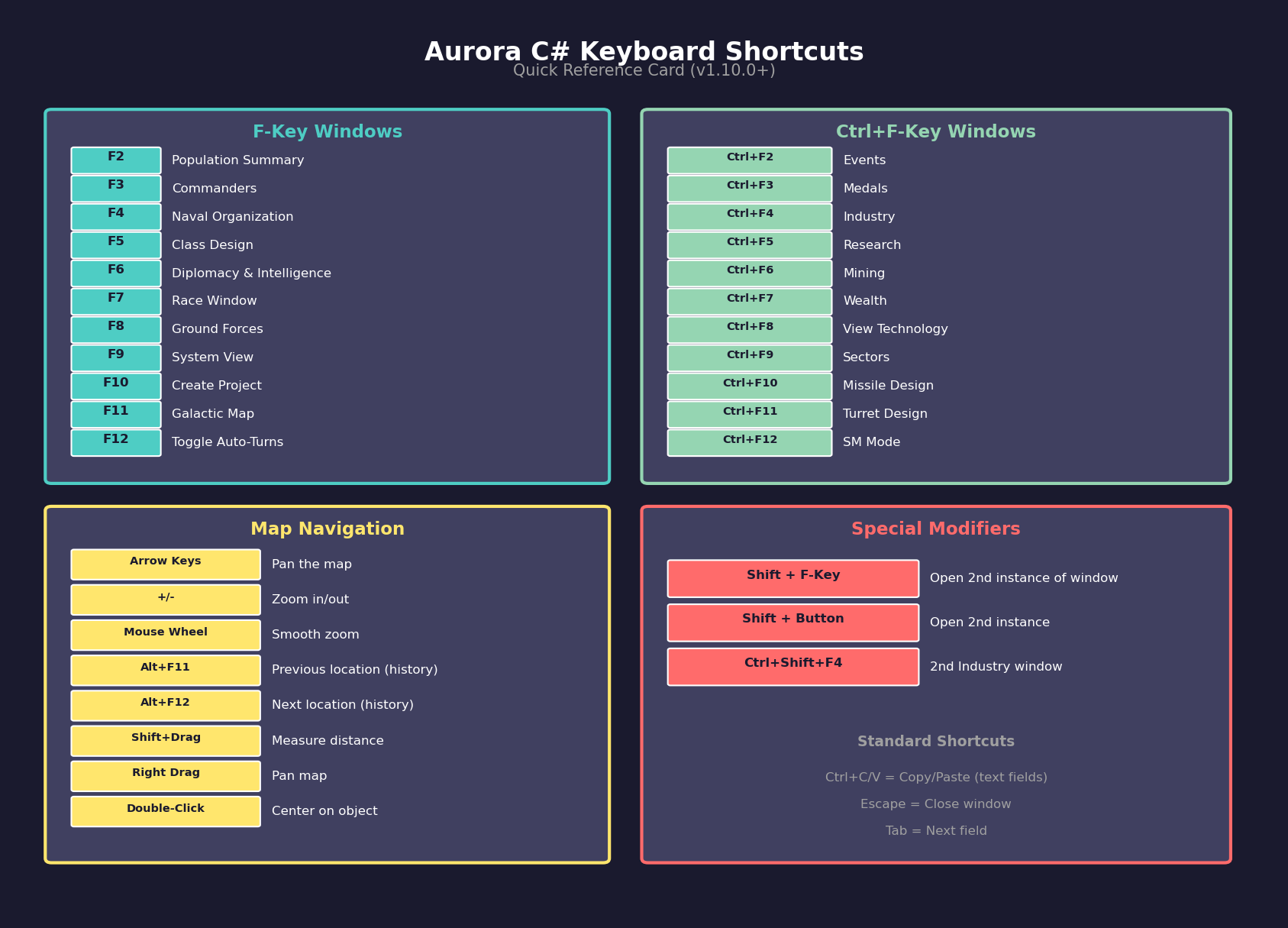
3.3.3.1 Function Key Shortcuts (F2-F12)
The following shortcuts open game windows directly: \hyperlink{ref-3.3-1}{[1]}
| Key | Window |
|---|---|
| F2 | Population Summary |
| F3 | Commanders Window |
| F4 | Naval Organization |
| F5 | Class Design |
| F6 | Diplomacy and Intelligence |
| F7 | Race Window |
| F8 | Ground Forces |
| F9 | System View |
| F10 | Create Project |
| F11 | Galactic Map |
| F12 | Toggle Automated Turns |
3.3.3.2 Control+Function Key Shortcuts (Ctrl+F2-F12)
The Control modifier accesses additional windows: \hyperlink{ref-3.3-1}{[1]}
| Key | Window |
|---|---|
| Ctrl+F2 | Events |
| Ctrl+F3 | Medals |
| Ctrl+F4 | Industry |
| Ctrl+F5 | Research |
| Ctrl+F6 | Mining |
| Ctrl+F7 | Wealth |
| Ctrl+F8 | View Technology |
| Ctrl+F9 | Sectors |
| Ctrl+F10 | Missile Design |
| Ctrl+F11 | Turret Design |
| Ctrl+F12 | SM Mode |
3.3.3.3 Shift Modifier for Multiple Windows
Holding Shift while using any of the above shortcuts will create a second instance of that window, functioning the same as when clicking a toolbar button with Shift held. For example, Ctrl+Shift+F4 opens a second Economics window at the Industry tab. This is useful for comparing data side-by-side.
3.3.3.4 Map Controls
- Arrow keys: Pan the system map
- +/- keys: Zoom in/out on the map
- Home: Center the map on the primary star (unverified — #714 – the specific key binding has not been confirmed in available sources)
- Alt+F11: Cycle backward through previous map center locations (history tracked since game load, added v1.12.0)
- Alt+F12: Cycle forward through previous map center locations (history tracked since game load, added v1.12.0)
- Shift+Drag: Measure distance between two points on the tactical map (unverified — #714 – exact display unit not confirmed; see Section 3.2.6 Distance Measuring for details)
3.3.3.5 Grid Navigation
(The following shortcuts are standard Windows data grid conventions and are expected to work in Aurora, but have not been verified against an Aurora-specific source.)
- Up/Down arrows: Move selection between rows in data grids (unverified — #714)
- Enter: Confirm selection or perform default action on selected row (unverified — #714)
- Tab: Move between fields in data entry areas (unverified — #714)
3.3.3.6 General
(The following shortcuts are standard Windows conventions and are expected to work in Aurora, but have not been verified against an Aurora-specific source.)
- Escape: Close the current window or cancel an operation (unverified — #714)
- Ctrl+Z: Undo in some text fields (not universal) (unverified — #714)
- Standard Windows shortcuts (Ctrl+C for copy) work in text fields (unverified — #714)
Important Notes:
- Shortcut keys are not rebindable
- Not all actions have keyboard equivalents – many operations require mouse interaction
- The F-key shortcuts work from the main window and most sub-windows
Mouse Shortcuts:
- Double-click on many list items opens a detail view
- Right-click provides context menus in some areas (particularly the system map)
- Mouse wheel scrolls in grids and zooms on the map
- Middle-click behavior varies by window
System View Double-Click:
Added: v2.7.0
Double-clicking system bodies in the System View window centers the Tactical Map on that location \hyperlink{ref-3.3-5}{[5]}. This provides a navigation shortcut for quickly moving the map view to specific bodies without manually zooming and panning.
Related Sections
- Section 6.3 Construction – Construction queue management in data grids
- Section 8.1 Design Philosophy – Class Design window shortcuts
- Section 9.1 Shipyards – Fleet and Naval Organization windows
- Appendix B: Glossary – Interface terminology definitions
References
\hypertarget{ref-3.3-1}{[1]} Aurora Forums, “Hot Keys” (aurora2.pentarch.org/index.php?topic=11306.msg131788) – Complete F2-F12 and Ctrl+F2-F12 keyboard shortcuts for C# v1.10.0; all 22 shortcut assignments verified exactly against forum source
\hypertarget{ref-3.3-2}{[2]} Aurora Forums, “1.12.0 Changes List” (aurora2.pentarch.org/index.php?topic=11593.0) – Alt+F11/Alt+F12 map location cycling added in v1.12.0
\hypertarget{ref-3.3-3}{[3]} AuroraWiki, “System Map” (aurorawiki2.pentarch.org/index.php?title=System_Map) – Shift+drag distance measuring
\hypertarget{ref-3.3-4}{[4]} Aurora C# is a .NET Windows Forms application (confirmed via Aurora.exe.config referencing System.Windows.Forms). DataGridView controls provide standard sorting, column resizing, and row selection behavior documented by Microsoft .NET Framework.
\hypertarget{ref-3.3-5}{[5]} Aurora Forums, “v2.7.0 Changes List” (aurora2.pentarch.org/index.php?topic=13814.0) – Double-clicking system bodies in System View centers tactical map on that location