3.5 Galactic Map
Updated: v2026.01.30

Contents
Updated: v2026.01.30
3.5.1 Overview
Updated: v2026.01.30
The Galactic Map provides a strategic overview of all known star systems and the jump point connections between them. While the System Map (see Section 3.2 System Map) shows the detail within a single system, the Galactic Map displays the broader topology of explored space – which systems connect to which, where your colonies and fleets are positioned, and how your empire relates to neighboring territory.
Opening the Window:
- F11: Keyboard shortcut to open the Galactic Map (see Section 3.3 Common Controls)
- Menu: Available from the System View / Galactic Map menu entry (see Section 3.1 Main Window)
Window Layout:
The Galactic Map displays as a node-and-line graph where each node represents a star system and each line represents a jump point connection. The window can be resized and expanded to fill the entire screen for maximum viewing area (see Section 3.1 Main Window).
Visibility Rules:
- Only systems your ships have visited appear on the Galactic Map
- Jump point connections are shown only for explored jump points (those your ships have transited)
- In SpaceMaster mode, all systems and connections are visible regardless of exploration status (see Section 18.5 SpaceMaster Mode)
- Gravitational survey treaties with NPRs may reveal additional jump point connections in systems both races have explored (see Section 15.3 Treaties)
3.5.2 Navigation Controls
Updated: v2026.01.30
Zoom:
- Mouse Wheel: Scroll up to zoom in, scroll down to zoom out
- Keypad +/-: Incremental zoom in and out
- Zooming centers on the current view position
- The map scales from showing the entire known galaxy down to individual system clusters
Panning:
- Click and Drag: Hold the mouse button and drag to pan the view across the galactic map
- The map pans smoothly, maintaining your current zoom level
System Positioning:
Systems can be repositioned on the map for visual clarity. The Galactic Map does not represent actual spatial distances – it is a topological diagram that you can arrange for readability:
- Shift+Click+Drag: Grab a system node and reposition it on the map
- SysPos Button: An alternative interface for system positioning mode
- Repositioned systems retain their new locations between sessions
- Rearranging systems does not affect gameplay, jump point connections, or travel distances
Centering:
- Double-click a system node to center the view on that system
- When centering on a system, the System Map can be switched to display that system simultaneously
System Search:
Added: v2.6.0
The Galactic Map includes a search functionality for locating specific systems by name \hyperlink{ref-3.5-7}{[7]}:
- Text Entry Field: Enter a system name to search across all known systems
- Locate and Center: Matching systems can be selected to automatically center the view on that system
- Particularly useful in late-game when dozens or hundreds of systems have been explored
Right-Click Context Menu:
Added: v2.6.0
Right-clicking on a system node displays a context menu with enhanced navigation options \hyperlink{ref-3.5-7}{[7]}:
- Open Tactical Map: Direct access to the Tactical Map for the selected system without intermediate windows
- Center on Fleet: Fleet-specific centering allows jumping directly to a fleet’s location
- These shortcuts bypass the Naval Organization window, streamlining navigation workflow
3.5.3 Display Elements
Updated: v2026.01.30
System Nodes:
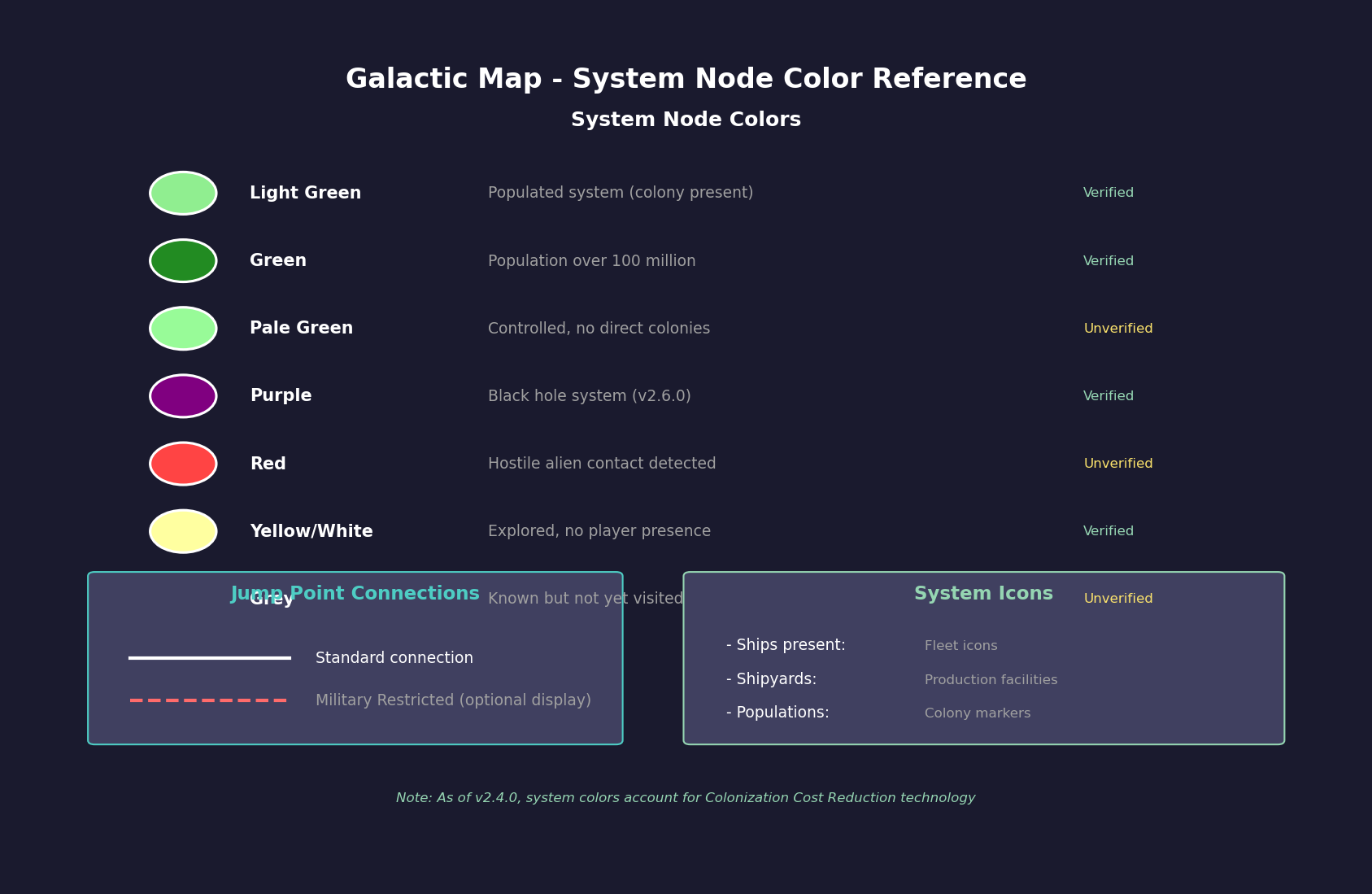
Each system is represented as a circular node with the system name displayed as a label. Node appearance communicates system status:
| Node Appearance | Meaning |
|---|---|
| Light green | Populated system (colony present) \hyperlink{ref-3.5-1}{[1]} |
| Green | System with population over 100 million \hyperlink{ref-3.5-1}{[1]} |
| Pale green | Controlled system without colonies of the controlling race (unverified for C# version) |
| Purple | Black hole system \hyperlink{ref-3.5-7}{[7]} |
| Red | Hostile alien contact detected in system (unverified — #721) |
| Yellow/white | Explored system with no player presence \hyperlink{ref-3.5-3}{[3]} |
| Grey | System known (via jump point discovery) but not yet visited (unverified — #721) |
Jump point connection lines:
Lines between system nodes represent explored jump point pairs. Each line indicates that ships can transit between the connected systems:
- Standard lines show normal jump point connections
- Military Restricted jump points may display differently when restriction visualization is enabled (see Section 4.4 Jump Points)
- A display option visualizes all restricted connections to help plan civilian trade routes and identify military-only corridors
Icons Within Nodes:
System nodes may display small icons indicating the presence of specific assets:
- Ships: Military or civilian vessels present in the system
- Shipyards: Active shipyard facilities
- Populations: Colony indicators
- Naval Forces: Military fleet presence (see Section 16.2 Skills and Bonuses for Galactic Map Naval Forces display)
Color Coding:
Body and system colors on the Galactic Map reflect current technology levels. As of v2.4.0, system body colors on the System View window and icons on the Galactic Map account for your current Colonization Cost Reduction technology level \hyperlink{ref-3.5-2}{[2]} (see Section 7.4 Tech Categories). This means worlds that become viable colonization targets as your technology improves are visually reflected on the map.
Supernovae Display:
Systems affected by supernova events display with specialized indicators on the Galactic Map (see Section 4.1 Star Systems).
Missile Salvo Sidebar (v2.6.0):
A sidebar panel displays missile salvos present in the currently selected system \hyperlink{ref-3.5-7}{[7]}. This provides at-a-glance awareness of active missile combat without needing to open the dedicated Missile Salvos window. The sidebar shows salvo information for the selected system only, making it easy to monitor combat situations across multiple systems by clicking through the galactic map nodes. See Section 12.3 Missiles for complete missile salvo tracking information.
3.5.4 Sector Assignment
Updated: v2026.01.30
Sectors provide an administrative grouping mechanism for organizing multiple star systems under unified command structures.
Defining Sectors:
- Systems can be assigned to named sectors from the Galactic Map interface or via the Sectors window (Ctrl+F9; see Section 3.3 Common Controls)
- A sector consists of one or more star systems grouped for administrative purposes
- Sector boundaries are organizational only – they do not affect ship movement or jump point access
Sector Commanders:
- Each sector can be assigned a sector commander (see Section 16.2 Skills and Bonuses)
- Sector commanders provide administrative bonuses to all colonies and fleets within their sector (unverified — #721 – specific sector bonus mechanics not confirmed in available sources)
- Commander skills (logistics, administration) affect production efficiency and fleet maintenance across the sector (unverified — #721)
- Higher-ranked commanders can manage larger sectors more effectively (unverified — #721)
Strategic Use:
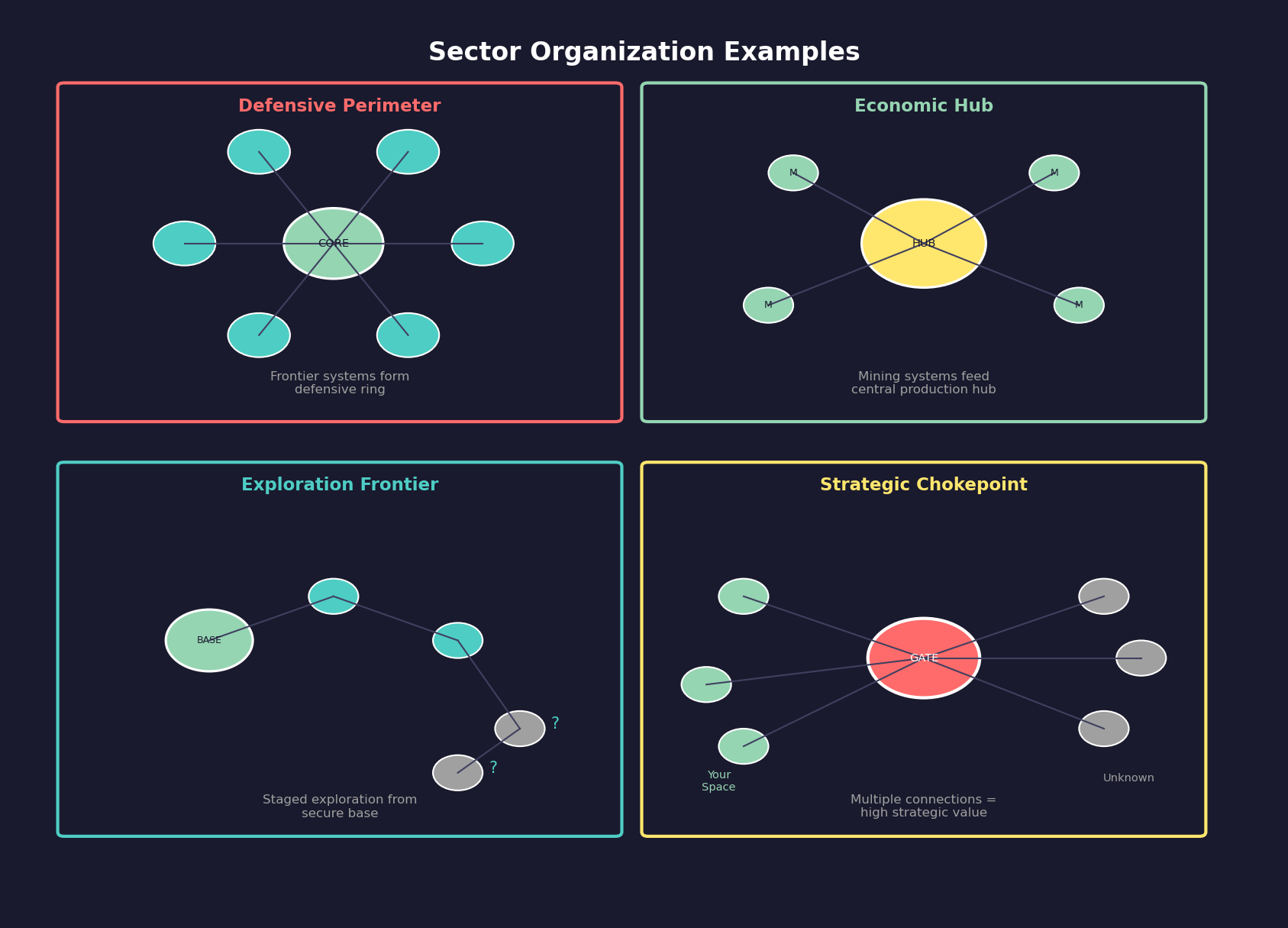
| Sector Strategy | Benefit |
|---|---|
| Geographic grouping | Clusters adjacent systems for logical command structure |
| Functional grouping | Groups mining systems, research systems, or military frontier systems separately |
| Defensive zones | Defines patrol areas and responsibility boundaries for fleet commands |
| Economic regions | Organizes supply chains and trade routes within coherent territories |
Tip: Assign your best administrative commanders to sectors containing your most productive colonies. The compounding bonus across multiple systems can significantly boost empire-wide output.
3.5.5 Fleet Disposition
Updated: v2026.01.29
The Galactic Map serves as the primary tool for understanding fleet distribution across your empire at a strategic level.
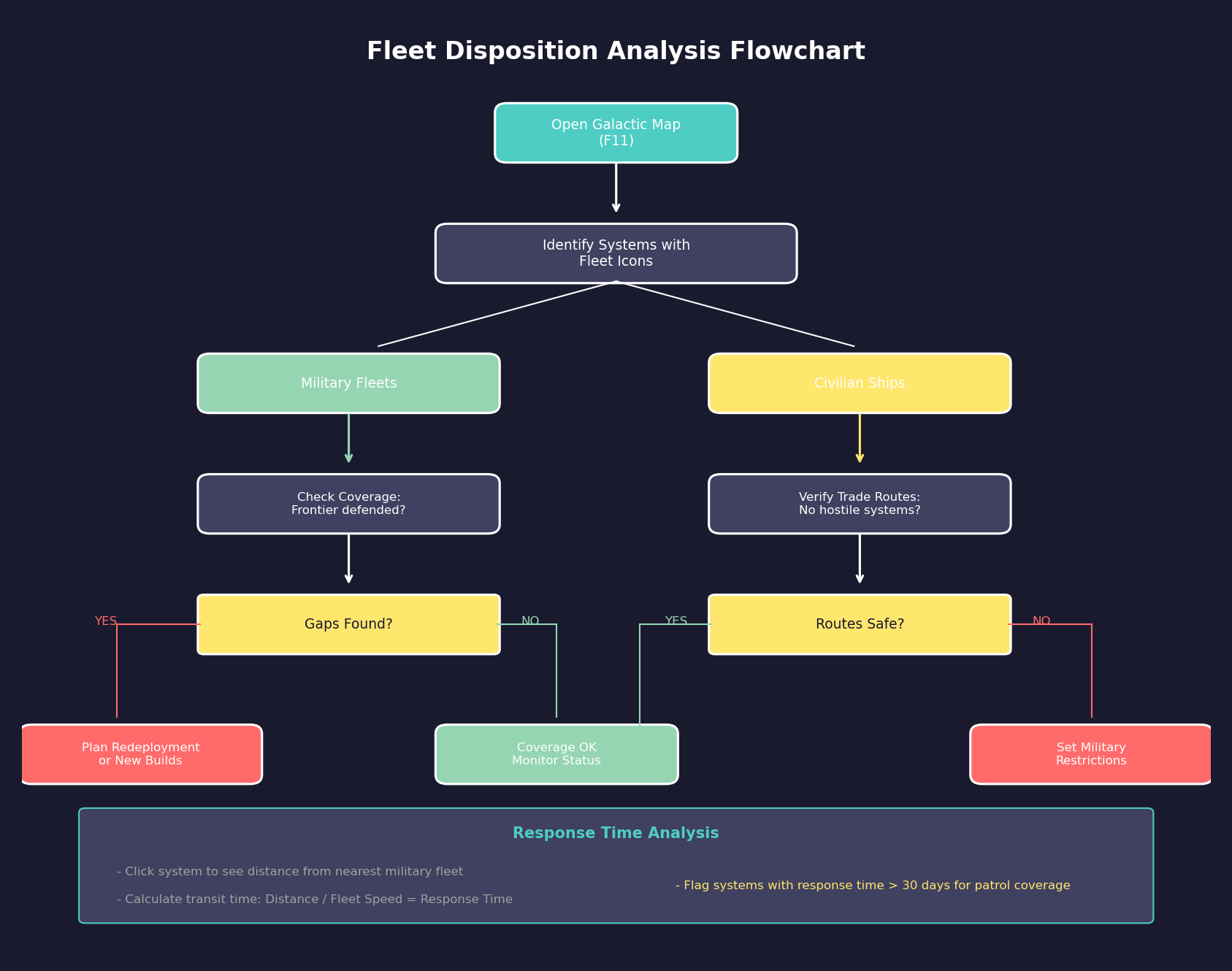
Viewing Fleet Positions:
- System nodes display indicators when fleets are present
- Military and civilian fleet presence may be distinguished by icon type (unverified — #721 – icon differentiation not confirmed in available sources)
- The map provides an at-a-glance view of which systems have naval coverage and which are undefended
Military vs. Civilian Presence:
Understanding fleet type distribution helps strategic planning:
- Military fleets: Warships, patrol groups, survey vessels on military orders
- Civilian shipping: Autonomous freighters, colony ships, fuel harvesters operating under civilian economy rules (see Section 6.5 Civilian Economy)
- Systems with only civilian presence are vulnerable to raids and require military attention if near hostile territory
Strategic Planning Use:
The Galactic Map is essential for late-game fleet management (see Section 18.4 Late-Game Strategy):
- Identify gaps in patrol coverage along frontier systems
- Verify logistics chains connect production centers to forward bases
- Plan offensive operations by visualizing the jump point route to target systems
- Assess defensive depth – how many systems an enemy must transit to reach core territory
- Coordinate multi-fleet operations across several systems simultaneously
Distance Calculations:
The Galactic Map provides two distance calculation modes for route planning:
- Standard Distance: Calculates the shortest path between systems through all available jump points
- Distance From Selected System (Restricted): Calculates distance while ignoring Military Restricted jump points, showing the true navigable distance for civilian traffic (see Section 4.4 Jump Points for Military Restricted status)
Both modes can be displayed simultaneously for comparing military vs. civilian route accessibility.
Distance Display Format:
Added: v2.6.0
Distances on the Galactic Map are displayed in billions of kilometers \hyperlink{ref-3.5-8}{[8]}, showing the shortest route distance between systems. This standardized unit provides a consistent scale for strategic planning across different system configurations.
System Blocking:
Individual systems can be flagged on the Galactic Map to exclude them from auto-route calculations entirely (see Section 9.5 Orders) \hyperlink{ref-3.5-6}{[6]}. This forces the routing algorithm to select alternative paths, useful for avoiding systems with known hostile presence or strategic no-go zones.
Mineral Search Flags:
Players can mark individual systems with a “Mineral Search Flag” from the Galactic Map interface \hyperlink{ref-3.5-6}{[6]}. The Mineral Search Window can then restrict searches to flagged systems only, enabling targeted mineral searches within a subset of known space rather than searching all systems simultaneously (see Section 3.1.7 Mineral Search Window for search capabilities).
Tip: Systems with many jump point connections are natural chokepoints with significant strategic value. Identifying and fortifying these systems early prevents enemy forces from penetrating deep into your territory.
Related Sections
- Section 3.1 Main Window – Galactic Map access, mineral search flags, and window resizing
- Section 3.2 System Map – Detailed single-system view and distance calculations
- Section 4.1 Star Systems – Star system generation, supernovae, and galactic map display
- Section 4.4 Jump Points – Jump point connections and military restricted status
- Section 6.5 Civilian Economy – Civilian shipping and trade route visualization
- Section 9.5 Orders – Auto-routing and system blocking
- Section 10.1 Movement Mechanics – Route optimization and jump point navigation
- Section 15.3 Treaties – Gravitational survey treaties revealing jump point data
- Section 16.2 Skills and Bonuses – Sector commander bonuses and naval forces display
- Section 17.2 Gravitational Survey – Discovering new jump point connections
- Section 18.4 Late-Game Strategy – Strategic fleet management at scale
- Section 18.5 SpaceMaster Mode – All-system visibility in SpaceMaster mode
References
\hypertarget{ref-3.5-1}{[1]} Aurora Forums, “Galactic Map Key” (aurora2.pentarch.org/index.php?topic=693.0) – System node colors: Light Green = populated system, Green = population over 100m; previous claim of “dark green = other installations” corrected. (VB6-era post ~2005-2010; UI colors may differ in C# Aurora — requires verification #854)
\hypertarget{ref-3.5-2}{[2]} Aurora Forums, “v2.4.0 Changes List” (aurora2.pentarch.org/index.php?topic=13367.0) – Confirmed: system body colors on System View and Galactic Map icons account for Colonization Cost Reduction technology as of v2.4.0
\hypertarget{ref-3.5-3}{[3]} AuroraWiki, “Galactic Map” (aurorawiki2.pentarch.org/index.php?title=Galactic_Map) – System node colors, jump point connection display
\hypertarget{ref-3.5-4}{[4]} AuroraWiki, “C-Galactic Map” (aurorawiki2.pentarch.org/index.php?title=C-Galactic_Map) – C# version galactic map features
\hypertarget{ref-3.5-5}{[5]} Aurora Forums, “galactic map display mode” (aurora2.pentarch.org/index.php?topic=13750.0) – Display options and system positioning
\hypertarget{ref-3.5-6}{[6]} AuroraWiki, “C-Game Interface” (aurorawiki2.pentarch.org/index.php?title=C-Game_Interface) – Mineral Search Flag and system blocking features
\hypertarget{ref-3.5-7}{[7]} Aurora Forums, “v2.6.0 Changes List” (aurora2.pentarch.org/index.php?topic=13463.0) – Black hole systems display purple background; Galactic Map search functionality; Right-click context menu with Tactical Map access and fleet centering
\hypertarget{ref-3.5-8}{[8]} Aurora Forums, “v2.6.0 Changes List” (aurora2.pentarch.org/index.php?topic=13463.0) – Galactic Map distance displays shortest route in billions of kilometers